
Buyers of tools, electronics, furniture or outdoor gear often decide on one number: weight, dimensions, wattage. If they cannot find it quickly, they look it up elsewhere and may buy it there.
Why it matters
Technical products usually end up with specs pasted into the description as a bullet list, mixed with marketing text and in only one unit system. A shopper in another market has to convert inches by hand, and a professional buyer looking for a datasheet finds nothing.
Maintaining separate tables for hundreds of products is the other problem. Merchants either give up or keep them inconsistent, so the spec that matters is in one place on one page and missing on the next.
What the section does
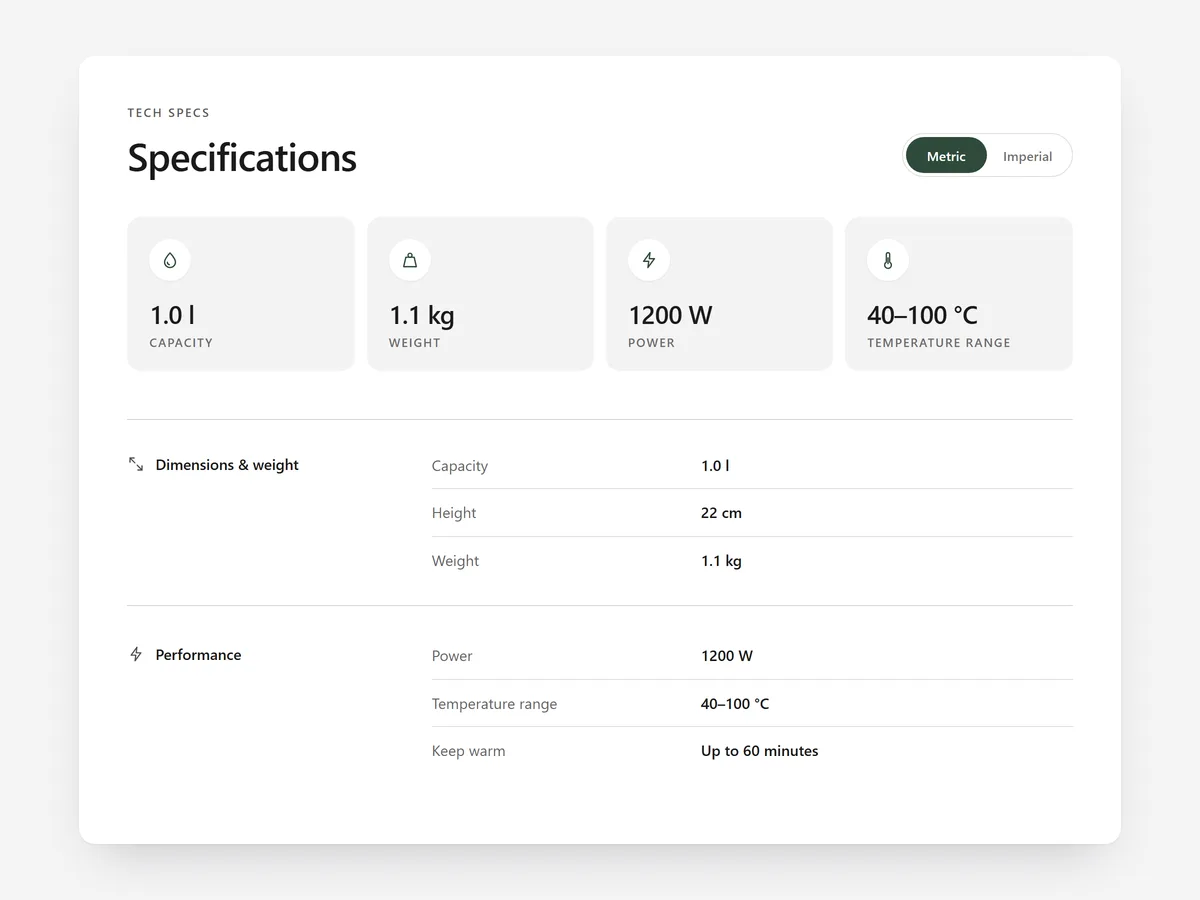
Spec Sheet shows technical specifications in a structured layout and serves many products from one section. It belongs on the product page, usually below the description.
- 01Key spec tiles highlight the three or four numbers buyers check first, with the full data in a table or collapsible groups below.
- 02A metric / imperial switch converts values and remembers the shopper's choice across pages.
- 03Shoppers can search the specs, show only rows for the selected variant and download your spec sheet files.
- 04Content sets apply by product, tag, vendor or type, so one section covers your whole catalogue.
Where to place it and what to write
On product pages, place it after the description and before reviews. If the product is bought mainly on specs, move the key tiles up close to the buy box and keep the full table further down.
- 01Pick key tiles that decide the purchase, such as weight or capacity.
- 02Group rows logically: dimensions, power, materials, in the box.
- 03Use the same row names across all products so comparisons work.
- 04Offer a download only when the file adds detail beyond the table.
Set it up in three steps
After saving, open a few products of different types and confirm the right content set appears. Test the unit switch and collapsible groups on mobile, and check the theme font is used. Speed is unaffected since the block renders plain HTML and CSS.
- 01Open Spec Sheet in Section Store, build your rows and content sets in the visual builder.
- 02Click Theme blocks → Add to theme to open the theme editor with the block placed on the product template.
- 03Adjust its position and save.
Conclusion
Clear specs in the shopper's own units keep technical buyers on your page. The Spec Sheet section is a one-time purchase of $12.99 in Section Store, or part of the Enterprise Plan.
Key takeaways
- 01Key spec tiles surface the numbers that decide a technical purchase.
- 02The metric / imperial switch serves buyers in every market.
- 03Content sets by product, tag, vendor or type keep one section for the whole catalogue.
Explore more




