
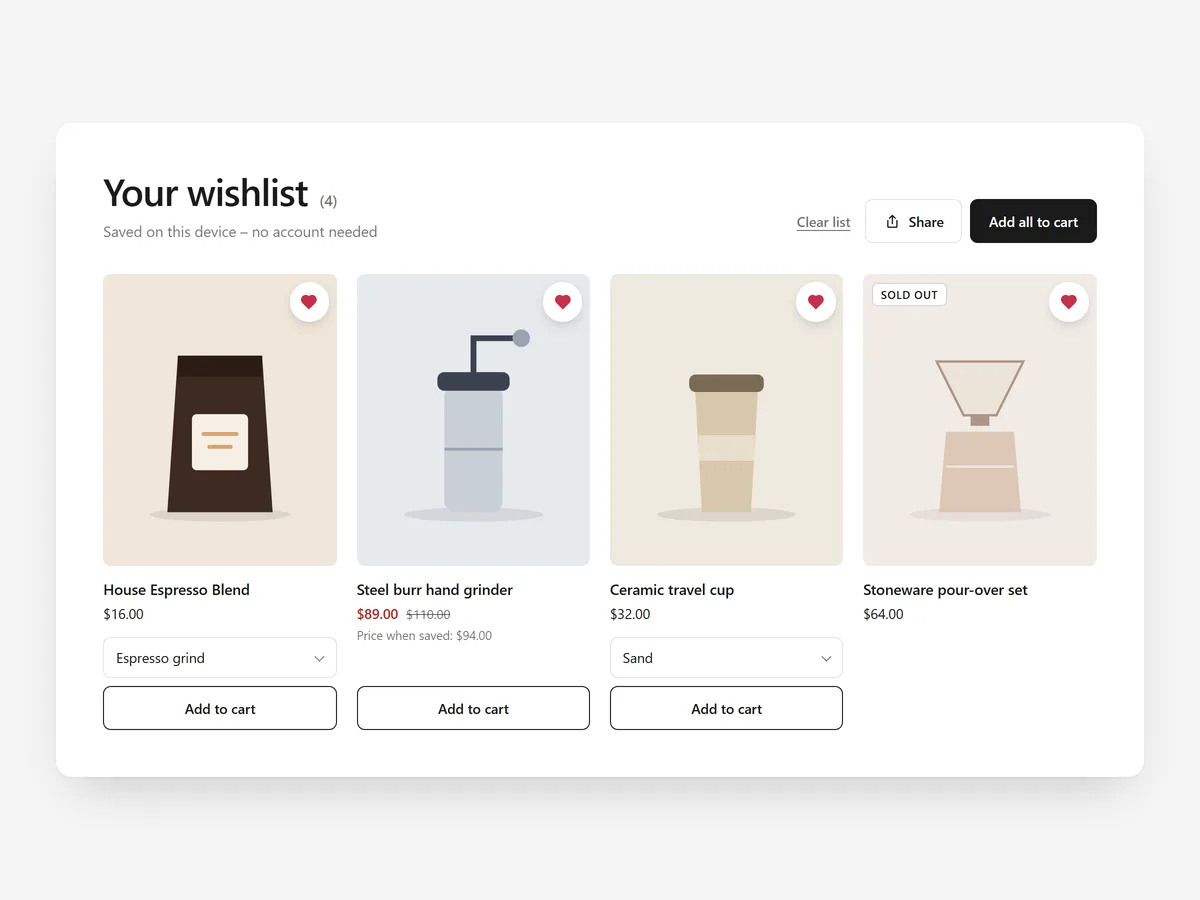
Most visitors are not ready to buy on their first visit. They browse, compare and plan to come back, but without a way to save what they liked, they forget where they saw it. A wishlist gives them a reason and a route to return.
Why it matters
Shoppers save products in clumsy ways: open tabs, screenshots, links sent to themselves. Every one of those can be lost, and when it is, the purchase is too. Many wishlist solutions also ask for an account first, which is exactly the step undecided shoppers avoid.
A saved list is different from browsing history. The Recently Viewed section shows what a shopper looked at; Wishlist holds what they chose to keep. For sold-out items, Back in Stock is the better tool, because it notifies them when the item returns.
What the section does
Wishlist adds saving to product pages and gives shoppers a place to come back to, without any login.
- 01A heart button sits under the add-to-cart button, where shoppers expect it.
- 02Saved items appear on their own page or in a floating drawer available across the store.
- 03Each saved item shows its live price and the option chosen, and shoppers can add all to the cart at once.
- 04Lists are saved on the device without an account and can be shared with a link.
Where to place it and what to write
The heart belongs directly under the add-to-cart button on the product page. Add the saved items page to the header or menu, or use the drawer if your header has no space.
- 01Label the button clearly, such as "Save for later", so its purpose is obvious.
- 02Call the page "Your saved items" rather than a brand slogan.
- 03Mention the share link around gifting season; wishlists are often sent to family.
- 04Keep the drawer for stores where shoppers browse many products in one visit.
Set it up in three steps
After saving, add products to the list, close the browser and come back to confirm they stay. Open the share link on another device. Speed is unaffected because the block renders plain HTML and CSS.
- 01Open Wishlist in Section Store, choose the page or drawer view and edit the button and page texts in the visual builder.
- 02Click Theme blocks, then Add to theme; the theme editor opens with the heart on your product template.
- 03Place it under the add-to-cart button and save.
Conclusion
Wishlist turns casual browsing into a list shoppers return to and buy from. The Wishlist section is a one-time purchase of $19.99 in Section Store, or part of the Enterprise Plan.
Key takeaways
- 01No account is needed, which keeps undecided shoppers from dropping off.
- 02Saved items show live prices and can all be added to the cart in one go.
- 03Always link the saved items page from the header or use the drawer.




