
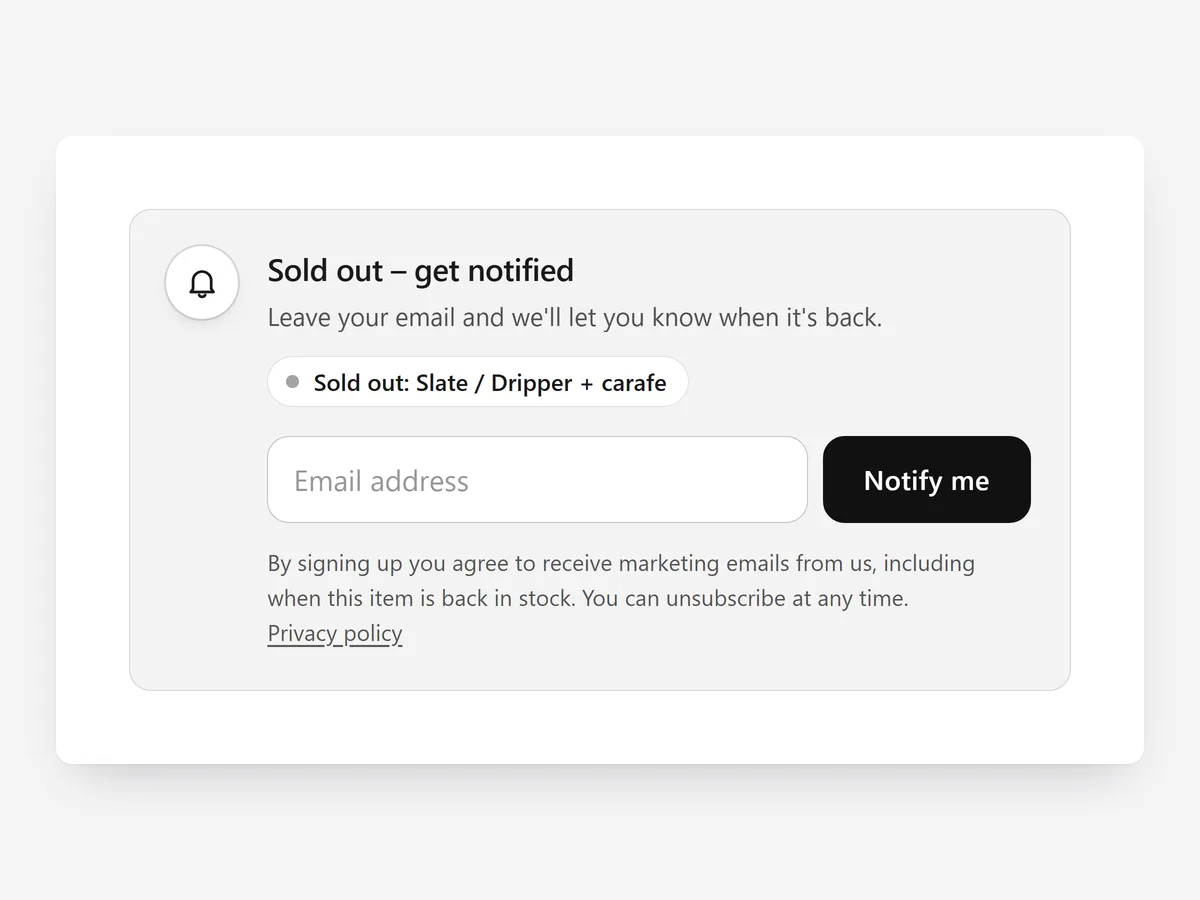
A sold-out variant is the moment a shopper is most likely to leave for good. They wanted this exact size or colour, and a greyed-out button gives them no reason to come back.
Why it matters
Popular variants sell out first, so the pages with the most demand stop selling. Without a notify-me option, that traffic is lost and you never learn how many people were waiting.
Requests per product also show which sizes and colours you underbought before the next purchase order. For questions about items in stock, the Product Inquiry section is the better fit.
What the section does
Back in Stock stays invisible on the product page until the selected variant runs out.
- 01The form only appears while the selected variant is sold out, so shoppers who can buy never see it.
- 02You choose between a card, a compact row or a popup, depending on how much room the product page has.
- 03Each request tags the shopper with the product, so you can send the restock email through Shopify Email.
- 04Marketing consent is asked clearly in the form, so you know who agreed to hear from you beyond the restock.
Where to place it and what to write
Place the block directly under the variant picker, where shoppers look the moment an item is unavailable.
- 01Make the headline about the variant, not the store: "Get an email when size M is back" beats "Join our newsletter".
- 02Ask for an email address only; every extra field makes a waiting shopper less likely to finish.
- 03Use the compact row on busy pages and the card when there is space.
- 04Do not promise a restock date unless your supplier has confirmed one.
Set it up in three steps
After saving, select a sold-out variant and check the form appears, then an available one and check it disappears. Test the popup on mobile. Speed is unaffected because the block renders plain HTML and CSS.
- 01Open Back in Stock in Section Store, pick the card, row or popup layout and write the headline and consent text in the visual builder.
- 02Click Theme blocks, then Add to theme; the theme editor opens with the block already placed on your product template.
- 03Move the block under the variant picker and save.
Conclusion
Back in Stock keeps the demand on sold-out pages instead of losing it, and shows you what to reorder. The Back in Stock section is a one-time purchase of $14.99 in Section Store, or part of the Enterprise Plan.
Key takeaways
- 01The form appears only for sold-out variants, so it never distracts from items you can ship.
- 02Requests are tagged per product, ready for a restock email in Shopify Email.
- 03Place it right under the variant picker, where shoppers look when an item is unavailable.
Explore more




