
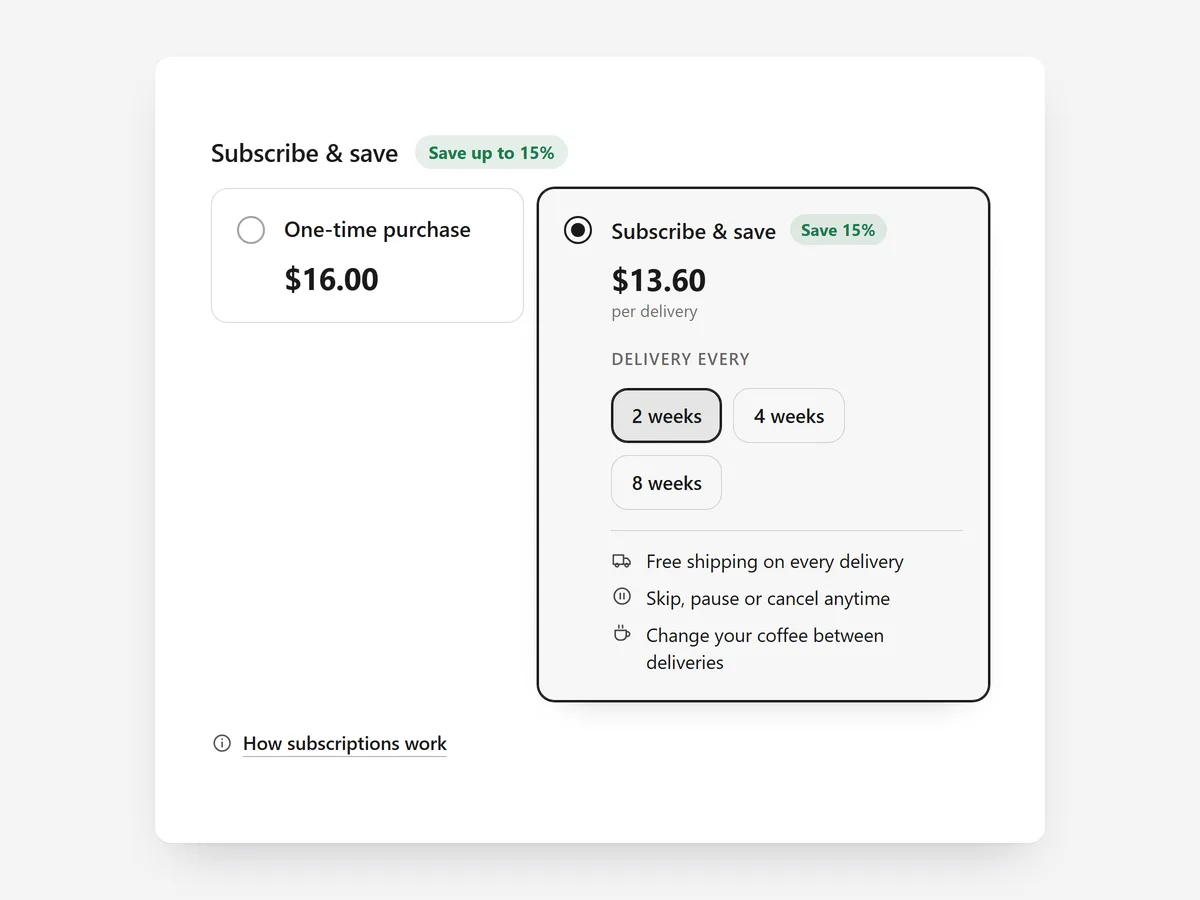
Shoppers are open to subscribing to things they use up, but only when they understand exactly what they are signing up for. A tiny radio button with "Subscribe and save" raises more questions than it answers: how often, how much, can I cancel?
Why it matters
Most subscription apps add little more than a frequency dropdown to the product form. Savings, perks and how cancelling works stay hidden on a FAQ page.
This section is for products sold through your subscription app's selling plans, such as coffee, supplements or pet food. If you sell memberships or boxes as separate plans with a monthly and yearly price, the Pricing Plans section is the better fit.
What the section does
Subscribe & Save explains your existing subscription offer right beside the add-to-cart button on the product page, using the prices your subscription app already provides.
- 01Prices are read live from your subscription app's selling plans, so the numbers always match checkout.
- 02You can show compare cards, a perks and steps layout or a compact switch between one-time and subscription.
- 03The chosen plan syncs with the theme's add-to-cart form, so shoppers do not have to pick it twice.
- 04A details drawer lists every plan, the steps of a subscription and a short FAQ without leaving the page.
Where to place it and what to write
Put the block directly above the add-to-cart button, where the one-time versus subscription decision happens.
- 01Lead with the delivery rhythm and the saving in one line, for example "Delivered every 4 weeks, cancel anytime".
- 02List two or three perks at most; free shipping and easy skipping matter more than a long list.
- 03Use the compact switch on products where most people buy once, and compare cards where subscribing is the main offer.
- 04Explain cancelling in plain words in the drawer instead of hiding it.
Set it up in three steps
After saving, add a subscription option to the cart and confirm the right plan arrives in checkout. Check the drawer on mobile. Page speed stays the same because the block outputs plain HTML and CSS.
- 01Open Subscribe & Save in Section Store, choose a layout and write the perks and FAQ in the visual builder.
- 02Click Theme blocks, then Add to theme; the theme editor opens with the block placed on the product template.
- 03Position it above the add-to-cart button and save.
Conclusion
Subscribe & Save turns a hidden plan picker into a clear offer shoppers can judge at a glance. The Subscribe & Save section is a one-time purchase of $14.99 in Section Store, or part of the Enterprise Plan.
Key takeaways
- 01Plan prices come live from your subscription app, so the page and checkout always agree.
- 02The selected plan syncs with the theme's add-to-cart form.
- 03Use Pricing Plans instead for memberships with monthly and yearly cards.




