
When you sell a membership, a box or a service, shoppers compare plans before they compare anything else. If they cannot quickly see what each plan includes and what yearly really saves, they postpone the decision.
Why it matters
Shopify themes are built for products, not plans. Tiers end up in a rich-text block or a table image, with prices and hand-typed savings that go stale when anything changes.
This section is for selling plans as the main offer, on a landing or pricing page. If you only want to explain the subscription option of a regular product next to its buy button, the Subscribe & Save section is the closer fit.
What the section does
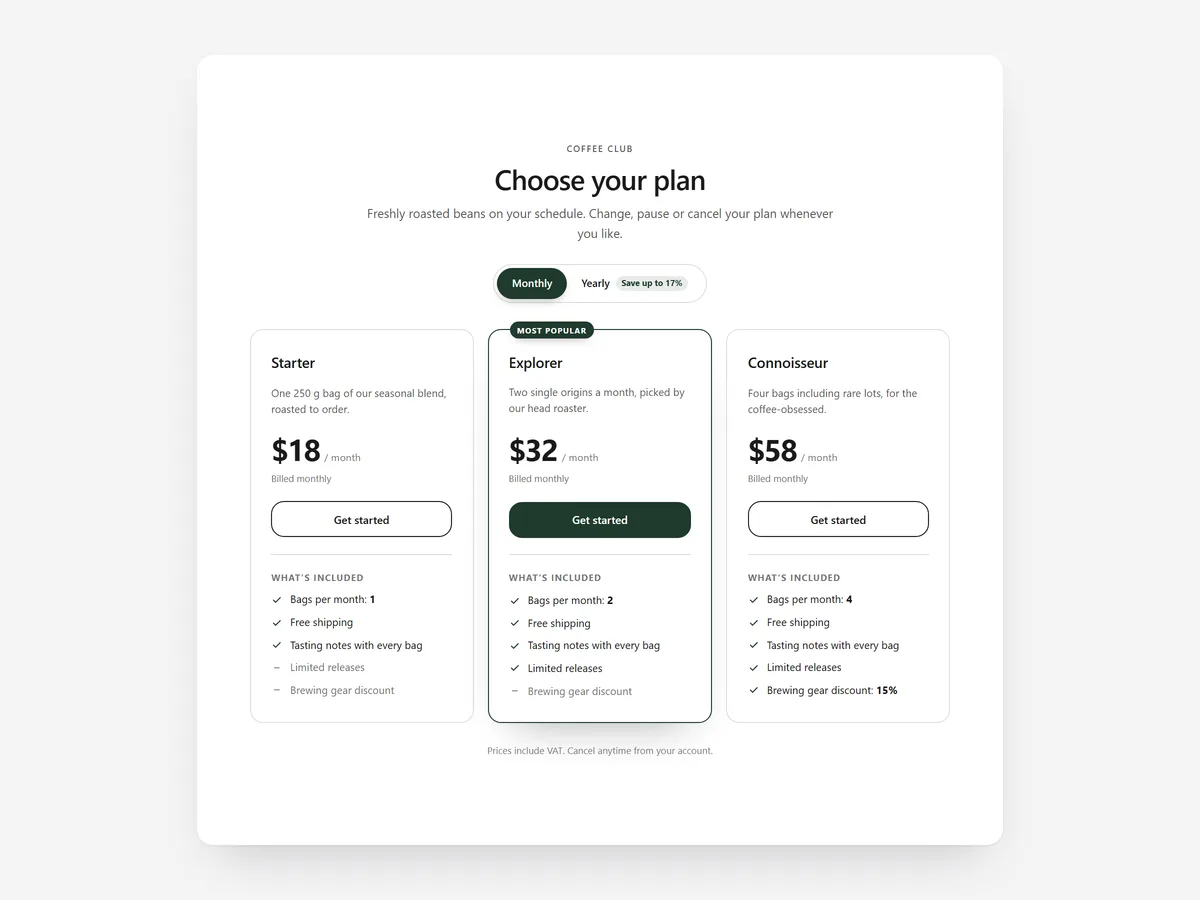
Pricing Plans builds a pricing page from your Shopify products and works on the home page, a landing page or a dedicated pricing page.
- 01A monthly and yearly switch calculates the saving from your real prices, so the number is always correct.
- 02Plans can appear as cards, a comparison table or stacked rows, depending on how many plans you offer.
- 03Prices are live from Shopify and each plan adds straight to the cart, including subscription plans.
- 04You can highlight one plan, list features per plan, and cards become swipeable on phones.
Where to place it and what to write
Use it as the main section of a pricing page, or as the second section of a membership landing page under a short hero. On the home page it works when plans are what you sell.
- 01Name plans by who they are for, such as "Solo" or "Family", rather than "Basic" and "Pro".
- 02Offer two to four plans; with more, use the comparison table instead of cards.
- 03Highlight the plan most customers should choose, not the most expensive one.
- 04Write feature lists that differ between plans; repeating the same lines on every card hides the difference.
Set it up in three steps
After saving, toggle monthly and yearly and add each plan to the cart once to confirm the right product arrives. Swipe the cards on your phone. Speed is unaffected because the block renders plain HTML and CSS.
- 01Open Pricing Plans in Section Store, connect your plan products, choose cards, table or rows and pick the highlighted plan.
- 02Click Theme blocks, then Add to theme; the theme editor opens with the block on the page you selected.
- 03Arrange it under your headline and save.
Conclusion
Pricing Plans gives memberships and boxes a pricing page with numbers that are always right. The Pricing Plans section is a one-time purchase of $19.99 in Section Store, or part of the Enterprise Plan.
Key takeaways
- 01Savings are calculated from your live Shopify prices, never typed by hand.
- 02Cards, table or rows let you match the layout to the number of plans.
- 03Use Subscribe & Save instead when the plan is an option on a regular product page.




