
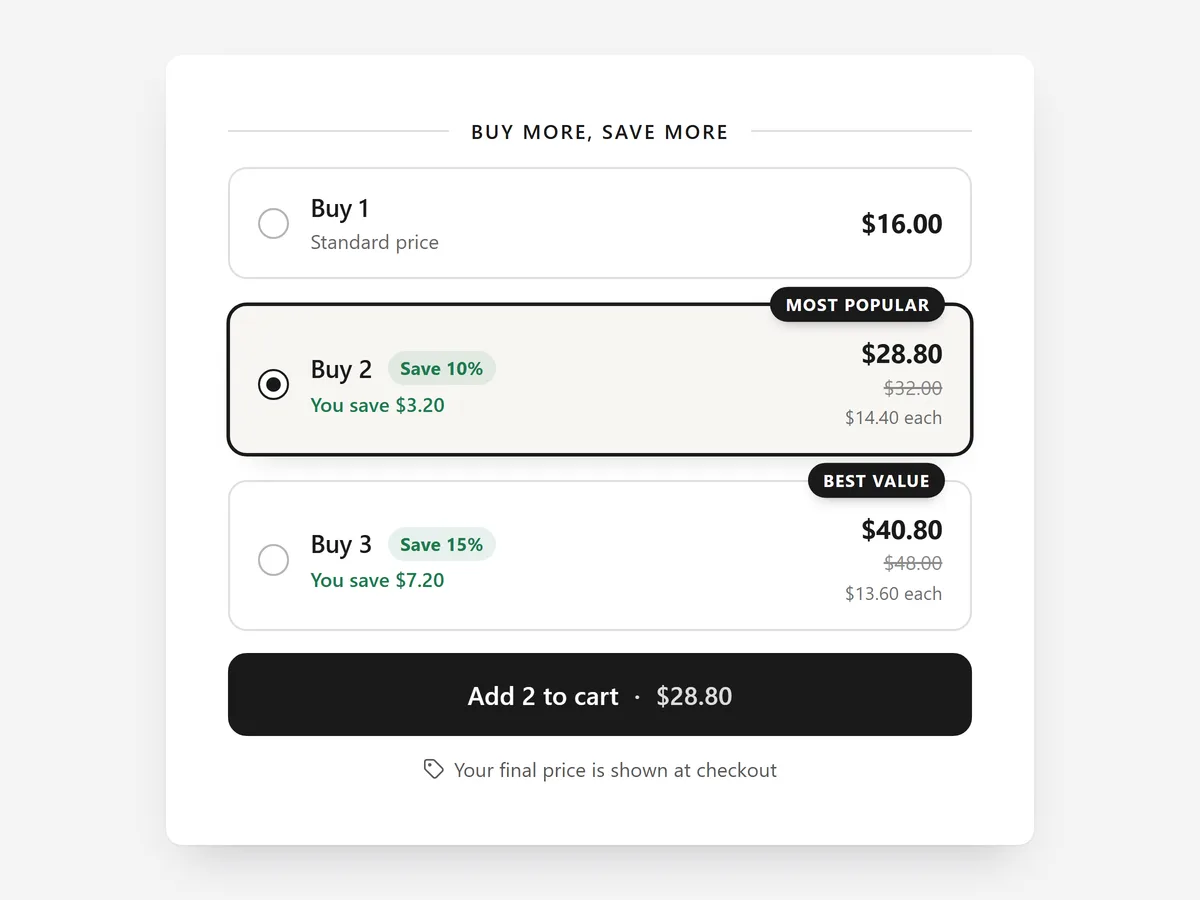
Products people use up or buy for several people, like socks, candles or coffee, sell well in multiples. But a volume discount nobody sees until checkout does nothing to change what lands in the cart.
Why it matters
Many stores set up an automatic discount for three or more items and mention it only in a banner. Shoppers still pick quantity one, and the discount surprises the few who happen to add more.
Showing tiers right on the product page turns the discount into a choice: one, two or three, with the price per item next to each. The risk is showing prices that do not match what checkout charges, which is why the tiers here mirror your real Shopify discounts.
What the section does
Quantity Breaks shows selectable tiers with live prices on product pages, directly in or below the buy box.
- 01Cards, tiles or compact rows let the tiers fit both roomy and tight buy boxes.
- 02Live totals and the price per item show the saving at each tier without mental maths.
- 03The tiers match your Shopify discounts, so the price shown is the price charged at checkout.
- 04Prices follow the selected variant, so switching size or colour updates every tier.
Where to place it and what to write
Place it above the add-to-cart button so the quantity choice comes before the click. Use it on consumables and gift-friendly products, not on one-off purchases like furniture.
- 01Offer three tiers at most; more options slow the decision.
- 02Keep tier labels short and concrete, such as "3 pairs" rather than a sentence.
- 03Highlight the tier you want most shoppers to pick, usually the middle one.
Set it up in three steps
After saving, pick each tier in the mobile preview, switch variants and go to checkout once to confirm the totals match. Check the theme font is used. Speed is unaffected because the block renders plain HTML and CSS.
- 01Create the volume discount in Shopify, then open Quantity Breaks in Section Store and set tiers, layout and preset in the visual builder.
- 02Click Theme blocks → Add to theme; the theme editor opens with the block already placed.
- 03Move it above the buy button and save.
Conclusion
Visible tiers turn a hidden discount into a deliberate choice on the product page. The Quantity Breaks section is a one-time purchase of $19.99 in Section Store, or part of the Enterprise Plan.
Key takeaways
- 01Show volume tiers before the add-to-cart click, not at checkout.
- 02Tiers mirror real Shopify discounts, so prices always match.
- 03Three tiers with a highlighted favourite are usually enough.
Explore more




