
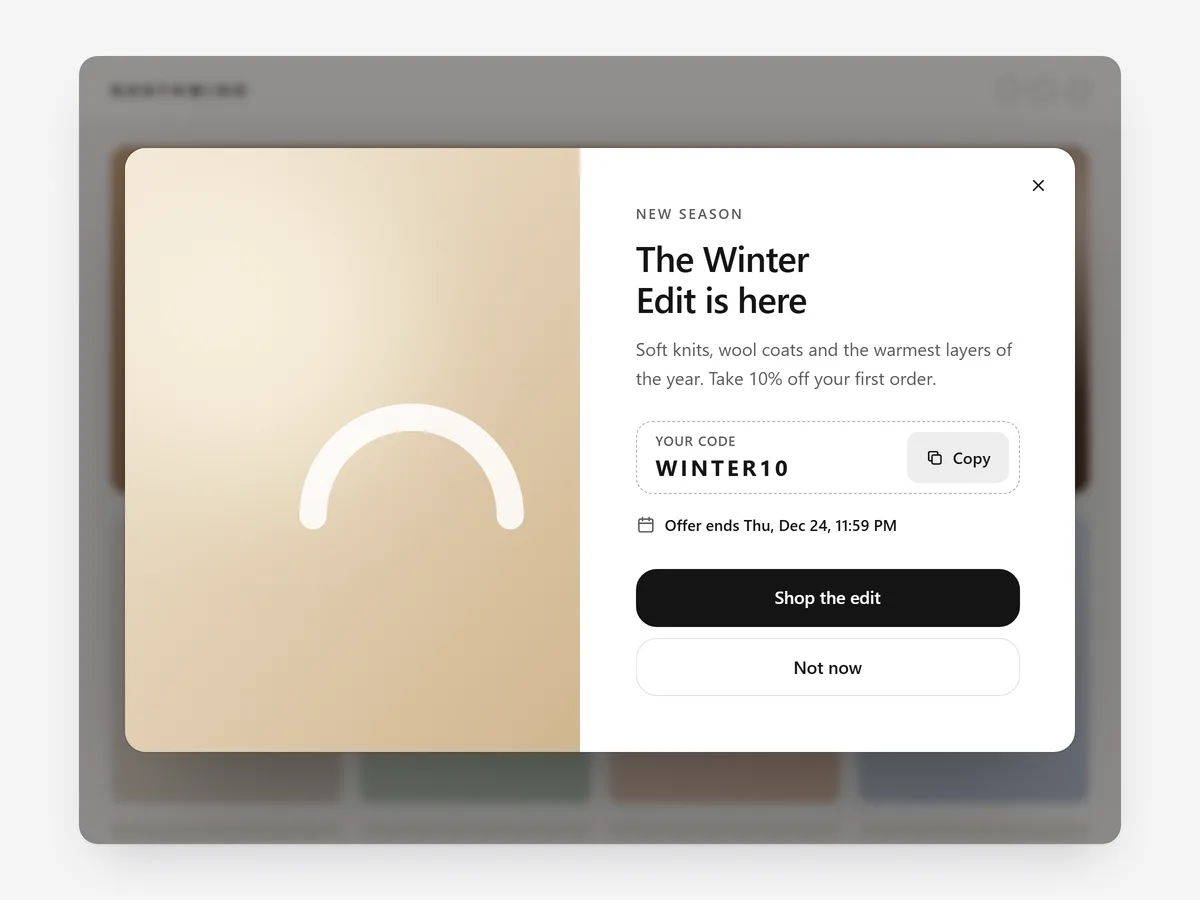
Popups have a bad reputation because most are badly timed: they cover the page before the visitor knows what the store sells and come back on every click. A popup that appears at the right moment, on the right page, once, is simply a message shoppers can act on.
Why it matters
Merchants run more campaigns than an announcement bar can hold: a weekend sale, a new collection, a gift deadline. Without control over where and how often a popup appears, the same message nags returning customers on pages where it makes no sense.
Smart Popup is the campaign tool. For collecting emails with an inline form, start with the Newsletter section, which has a simpler popup. Choose Smart Popup for targeting, schedules and caps.
What the section does
Smart Popup controls format, timing, audience and frequency in one place. It works across the home page, product pages, collection pages and content pages.
- 01Choose a full modal for important announcements, a slide-in for softer messages or a small corner card that never blocks the page.
- 02Trigger it after a delay, after scrolling, on exit intent or when a visitor clicks a link or button.
- 03Target specific pages, schedule start and end dates, and cap how often one visitor sees it.
- 04Offer a discount code to copy or apply, with a clear close button and no dark patterns.
Where to place it and what to write
Target the pages where the campaign fits: a collection launch on that collection and the home page, a product offer on its product pages. Use exit intent on product pages and the click trigger for details behind a link.
- 01Lead with the offer and its end date in one sentence.
- 02Write a polite close option such as "No thanks", never a guilt-trip line.
- 03Cap frequency so a visitor sees the same popup once per session or less.
- 04Schedule the end date when you create the campaign.
Set it up in three steps
After saving, visit a targeted page in a private window and confirm the popup appears once and closes easily on a phone. Text uses your theme's font by default. Speed is unaffected, because the block renders plain HTML and CSS.
- 01Open Smart Popup in Section Store, choose format, trigger, targeting, schedule and cap, then check the preview on desktop, tablet and mobile.
- 02Click Theme blocks, then Add to theme; the theme editor opens with the block already placed.
- 03Save the theme.
Conclusion
Smart Popup shows campaign messages when and where they make sense, and no more often than that. The Smart Popup section is a one-time purchase of $14.99 in Section Store, or part of the Enterprise Plan.
Key takeaways
- 01Page targeting, schedules and frequency caps stop popups from nagging.
- 02Use Smart Popup for campaigns and the Newsletter section for email signups.
- 03A clear close button and honest wording keep the popup trustworthy.
Explore more




