
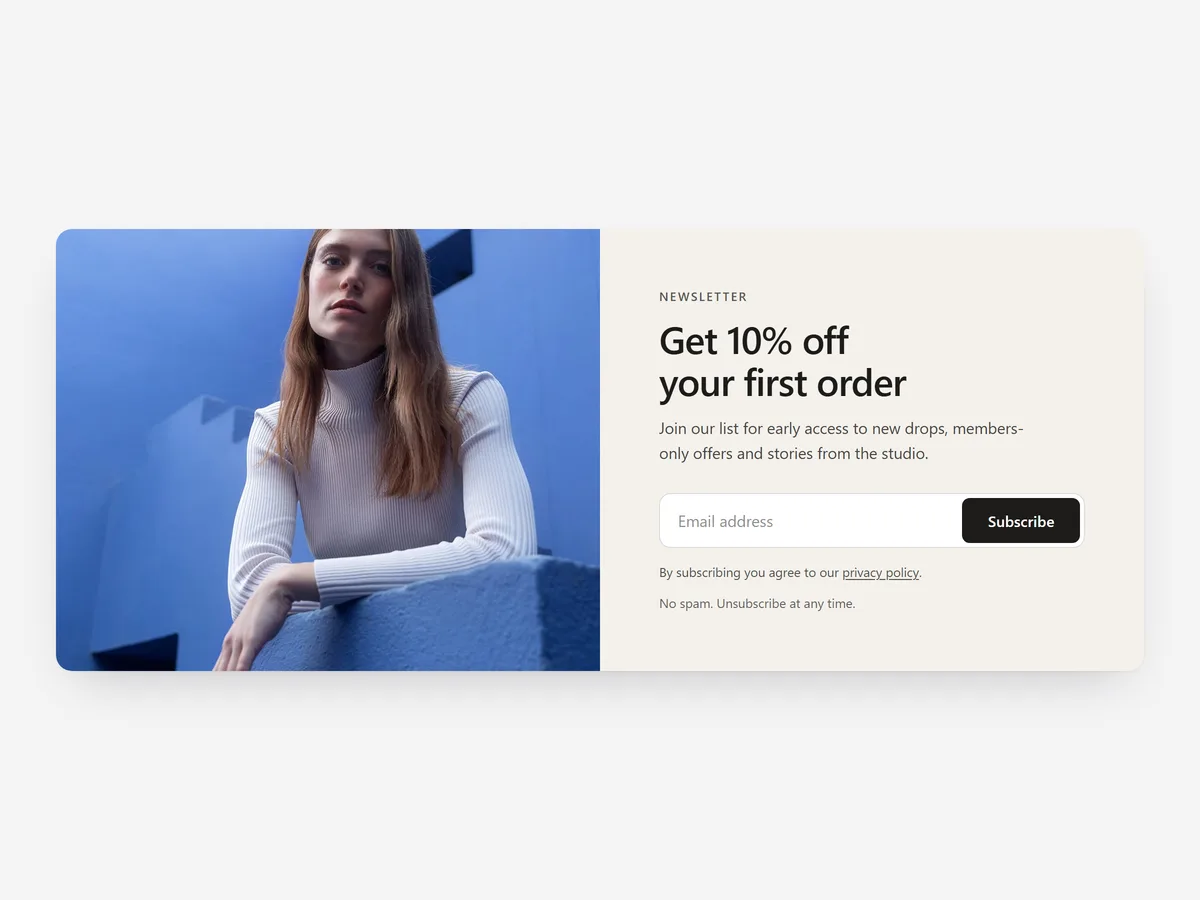
Most first-time visitors are not ready to buy, but some are ready to hear from you again. An email address is the cheapest way to bring them back, and a signup form that clearly says what they get is far more likely to be filled in than a box labelled "Subscribe".
Why it matters
The default footer form is easy to miss and gives no reason to sign up. Stores then add an aggressive popup on every page, which annoys returning customers.
The Newsletter section covers both: inline forms where interest is high, plus an optional popup with sensible triggers. For campaign popups with page targeting and schedules, the Smart Popup section is the specialist.
What the section does
Newsletter combines a signup form, an optional popup and a welcome discount. It fits the home page, collection pages, blog articles and the footer area.
- 01Choose a split layout with an image, a card, a full-width banner or a slim bar, depending on how much room the page has.
- 02An optional popup can open after a delay, after the visitor scrolls, or on exit intent.
- 03After signup, a discount code is revealed with a copy button and can be applied automatically at checkout.
- 04Signups land in Shopify Customers, so your existing email tool can pick them up from there.
Where to place it and what to write
Use the split layout on the home page after the main collections, the slim bar above the footer, and the card at the end of blog articles where readers are already engaged.
- 01Say what subscribers get and how often: "New drops and one offer a month".
- 02Ask only for the email address; every extra field loses signups.
- 03Use exit intent for the popup rather than a short delay on the first page.
- 04Make the discount match what the headline promises.
Set it up in three steps
After saving, sign up with a test address, copy the code and confirm the new contact appears in Shopify Customers. On a phone, check that the popup closes easily. Text uses your theme's font by default, and speed is unaffected because the block renders plain HTML and CSS.
- 01Open Newsletter in Section Store, choose layout, popup trigger and discount code, then check the preview on desktop, tablet and mobile.
- 02Click Theme blocks, then Add to theme; the theme editor opens with the block already placed.
- 03Position the block and save.
Conclusion
Newsletter gives undecided visitors a clear reason to stay in touch. The Newsletter section is a one-time purchase of $12.99 in Section Store, or part of the Enterprise Plan.
Key takeaways
- 01Tell visitors what they get and how often, then ask only for an email address.
- 02Inline forms and an optional popup with exit intent cover both engaged and leaving visitors.
- 03Signups go to Shopify Customers, ready for your email flows.
Explore more




