A real deadline helps shoppers who were going to buy anyway decide today instead of next week. A fake one that resets on every visit does the opposite: once a shopper notices, they stop trusting every other claim on the page.
Why it matters
Merchants usually need a countdown for three different jobs: the end of a sale, the opening of a product drop, and the daily cut-off for same-day dispatch. Many timers handle only the first and quietly restart for each visitor.
This section treats the deadline as a fact: everyone sees the same end time, and when it passes, the timer disappears or shows your message. For a one-line sale notice without a clock, the Promotion Bar section is lighter.
What the section does
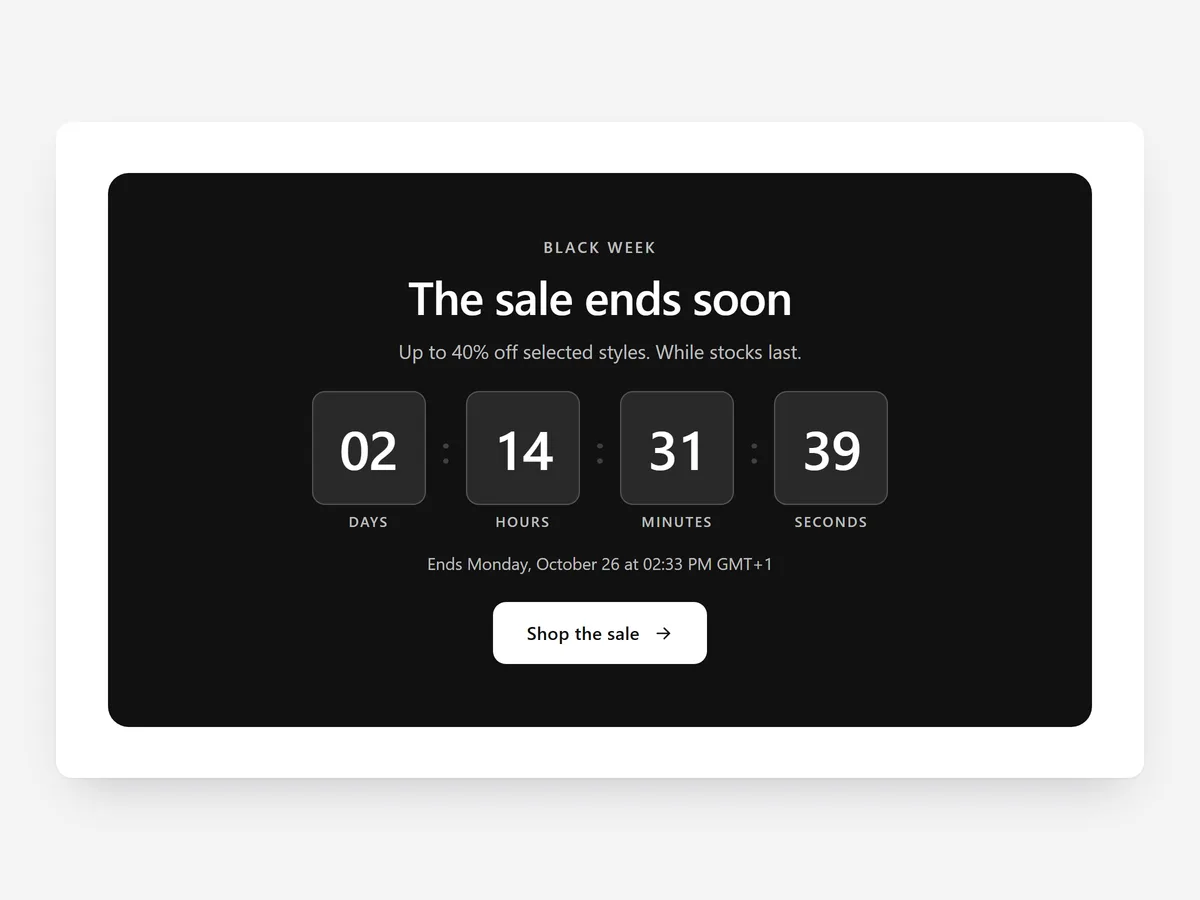
Countdown shows time remaining in the style that suits the page. It fits the home page, product pages, collection pages and campaign landing pages.
- 01Four styles are available: tiles, a flip clock, an inline line of text or a full-width banner.
- 02You can count to a fixed end date, run between a start and an end, or repeat a daily order cut-off.
- 03Every visitor sees the same deadline, so the timer never resets when someone reloads or returns.
- 04When time runs out, the section hides itself or shows a message such as the next shipping day.
Where to place it and what to write
For a sale, use the banner style on the home page directly under the hero. For a daily cut-off, use the inline style on product pages close to the add-to-cart button. For a launch, place tiles at the top of the landing page.
- 01Say what happens at zero: "Sale ends in" or "Order within ... for dispatch today".
- 02Use one countdown per page; two clocks with different deadlines confuse people.
- 03Write the end message before the timer goes live, so the page never shows zeros.
- 04Match the deadline to your actual checkout and warehouse rules.
Set it up in three steps
After saving, check the page on your phone: tiles and the flip clock should fit one row without wrapping. The text uses your theme's font by default. Speed is unaffected, because the block renders plain HTML and CSS.
- 01Open Countdown in Section Store, choose the style and the deadline type, then check the preview on desktop, tablet and mobile.
- 02Click Theme blocks, then Add to theme; the theme editor opens with the block already placed.
- 03Position the block and save.
Conclusion
Countdown gives real deadlines a clear, consistent clock and steps aside when the moment has passed. The Countdown section is one of the 14 free sections in Section Store.
Key takeaways
- 01One deadline for every visitor keeps the countdown honest and believable.
- 02Pick sale end, start and end, or daily cut-off depending on the job the timer does.
- 03Always define what the section shows or hides when the time runs out.
Explore more