
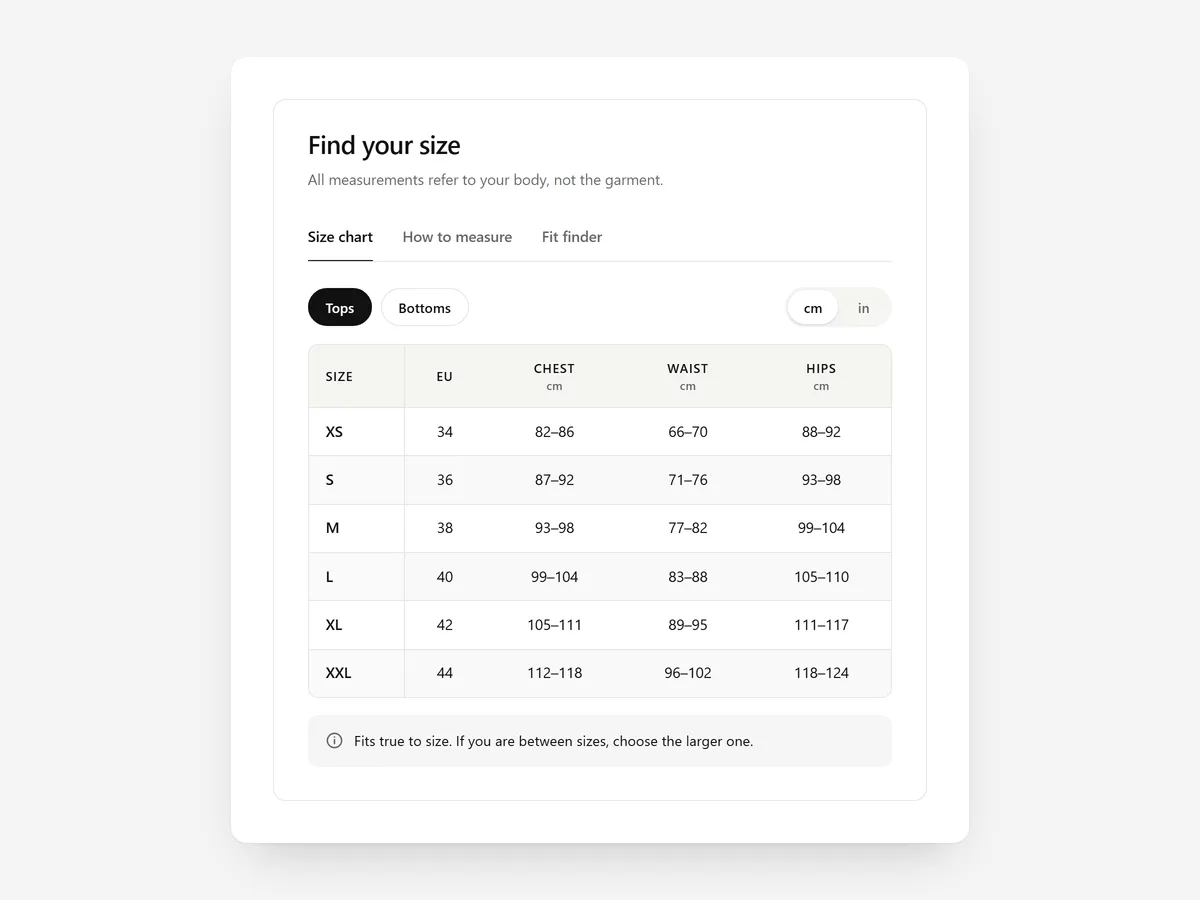
Fit is the question clothing and shoe shoppers cannot answer by looking at a photo. When they are unsure, they either leave or order two sizes and send one back.
Why it matters
Many stores link a size chart as an image or a separate page. On a phone the image is too small to read, and leaving the product page breaks the purchase flow.
A chart alone also assumes shoppers know their measurements. Most do not, and they measure differently from how your chart was made, which leads to the wrong size and a return.
What the section does
Size Guide brings charts, measuring help and a recommendation onto the product page. It suits apparel, shoes and any product sold in sizes.
- 01Show the chart in a drawer, a pop-up or inline, so it opens without leaving the product.
- 02A cm/in toggle converts values properly, so shoppers read sizes in the unit they know.
- 03A how-to-measure guide with numbered steps explains each measurement.
- 04A fit finder recommends a size, which helps shoppers who do not want to read a chart.
Where to place it and what to write
Put a drawer or pop-up link right next to the size selector, where the doubt appears. Use the inline chart further down the page for products with complex fits.
- 01Label the link "Size guide" or "Find your size".
- 02Use the measurements of the actual garment or last, not a generic standard.
- 03Add a fit note, such as "runs small, size up", where it applies.
Set it up in three steps
Afterwards, open the guide in the mobile preview, switch units and try the fit finder. Confirm the theme font is used. Speed is unaffected, because the block renders plain HTML and CSS.
- 01Open Size Guide in Section Store, enter your chart and measuring steps and choose drawer, pop-up or inline.
- 02Click Theme blocks, then Add to theme; the theme editor opens the product template with the block placed.
- 03Move the link next to the size selector and save.
Conclusion
A size guide beside the size selector helps shoppers pick right the first time. The Size Guide section is a one-time purchase of $14.99 in Section Store, or part of the Enterprise Plan.
Key takeaways
- 01Open the size chart without leaving the product page.
- 02Explain how to measure and offer a size recommendation.
- 03Use separate charts for different cuts.
Explore more




