A retailer restocking a shop does not want to open every size of every colour one by one. Standard product pages are built for single purchases, so bulk buyers spend minutes clicking through variants or send an order by email instead.
Why it matters
Wholesale and repeat customers know what they want; the product page just slows them down. Selecting a variant, adding it, going back and repeating for twenty variants invites mistakes and abandoned orders.
This section is for orders across many variants. If you want to reward shoppers for buying more of a single item, the Quantity Breaks section is the right tool; for mixed boxes with a discount, use Build Your Box.
What the section does
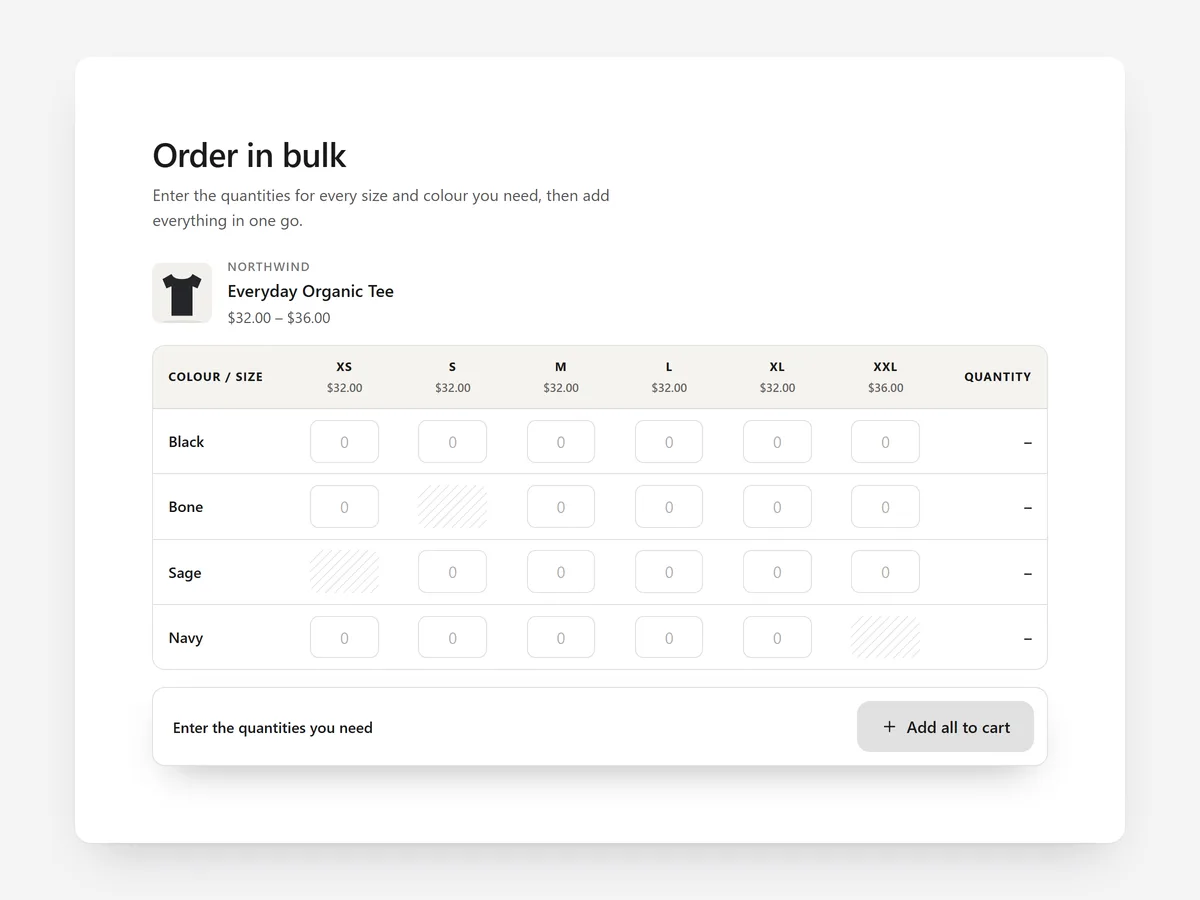
Quick Order Table turns a product or a collection into an order form, suited to product pages, wholesale landing pages and dedicated order pages.
- 01Variants appear as a size by colour matrix, a variant list or a whole collection, depending on your range.
- 02Each row shows live availability, the SKU and the price, so buyers order what is actually in stock.
- 03Minimum quantities and pack sizes are respected, so orders arrive in the units you ship.
- 04One button adds everything entered to the cart at once.
Where to place it and what to write
On product pages with many variants, place the matrix below the main buy box for buyers who need multiple sizes. For wholesale, create a dedicated page with the collection view and link it from the account area or the menu.
- 01Use a plain headline such as "Order multiple sizes"; bulk buyers want function, not slogans.
- 02Use the matrix for clothing with sizes and colours, the list for products with one option.
- 03Show SKUs, because buyers often order from their own purchase lists.
- 04Explain minimums and pack sizes above the table so nobody is surprised at the button.
Set it up in three steps
After saving, enter quantities for several variants, add all and check the cart. Check the table scrolls cleanly on a phone. Speed is unaffected because the block renders plain HTML and CSS.
- 01Open Quick Order Table in Section Store, choose matrix, list or collection and set minimums and pack sizes in the visual builder.
- 02Click Theme blocks, then Add to theme; the theme editor opens with the block already placed.
- 03Move it below the buy box or onto your order page and save.
Conclusion
Quick Order Table lets bulk buyers place a full order in one pass instead of variant by variant. The Quick Order Table section is a one-time purchase of $19.99 in Section Store, or part of the Enterprise Plan.
Key takeaways
- 01Every variant on one screen with live stock, SKU and price.
- 02Minimums and pack sizes keep orders in the units you ship.
- 03Use Quantity Breaks for volume discounts on a single item.
Explore more