
Many products are only half the purchase: a camera needs a memory card, a plant needs a pot, a coffee grinder needs beans. Shoppers who forget the second item are often disappointed when the parcel arrives.
Why it matters
If add-ons only appear in a related-products carousel, shoppers have to open each one, pick a variant and add it separately. Few bother, and the ones who do lose track of the total.
A bundle block shows the combination on the product page with one total and one button. Choose it when you have a fixed set of add-ons for a product. If you want shoppers to assemble their own set from a larger range, the Build Your Box section is the better fit.
What the section does
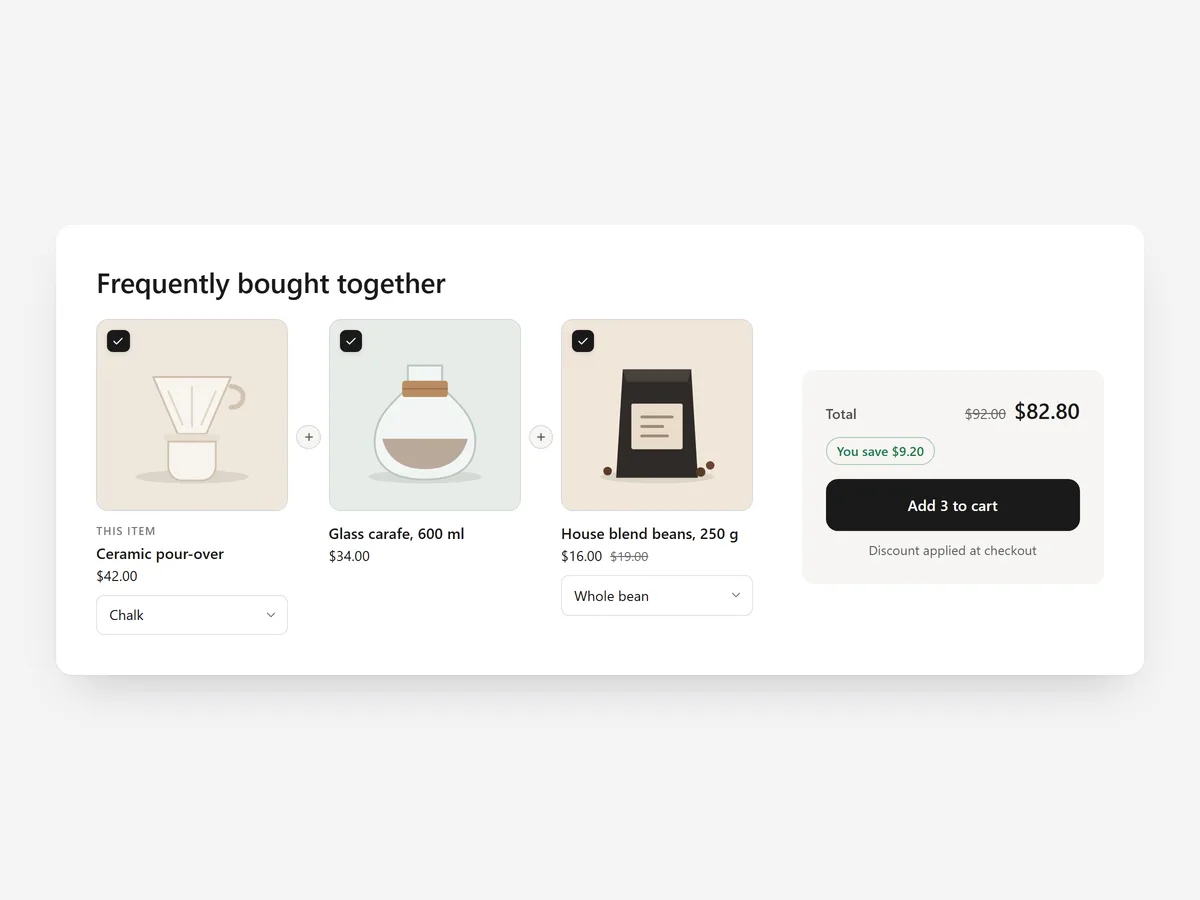
Bundle shows the current product together with selected add-ons and a running total. It belongs on product pages, close to the buy box.
- 01Checkboxes and variant pickers let shoppers choose which add-ons they want and in which size or colour.
- 02A live total updates as items are ticked and shows the savings when a discount applies.
- 03One click adds the whole bundle to the cart, instead of three separate trips.
- 04An optional discount code is applied automatically, so the bundle price is honoured without manual steps.
Where to place it and what to write
Place it directly below the buy box or description, before reviews. On products with many add-ons, pick the two or three that are needed most rather than everything that fits.
- 01Use a headline that explains the pairing: "Complete your setup" or "Often bought with this grinder".
- 02Pre-tick only add-ons almost every buyer needs; leave optional ones unticked.
- 03If you offer a discount, show it in the headline so the savings are visible before the total.
Set it up in three steps
After saving, add the bundle to the cart in the mobile preview and confirm the discount applies at checkout. Check variant pickers work on a phone and the theme font is used. Speed is unaffected because the block renders plain HTML and CSS.
- 01Open Bundle in Section Store, pick the add-on products, an optional discount code and a style preset in the visual builder.
- 02Click Theme blocks → Add to theme; the theme editor opens with the block already placed.
- 03Move it under the buy box and save.
Conclusion
A bundle saves shoppers from forgetting the second item and saves you a disappointed customer. The Bundle section is a one-time purchase of $19.99 in Section Store, or part of the Enterprise Plan.
Key takeaways
- 01Bundle needed add-ons with the product and add them in one click.
- 02Live totals and savings make the combination easy to judge.
- 03Use Build Your Box instead when shoppers should assemble their own set.
Explore more




