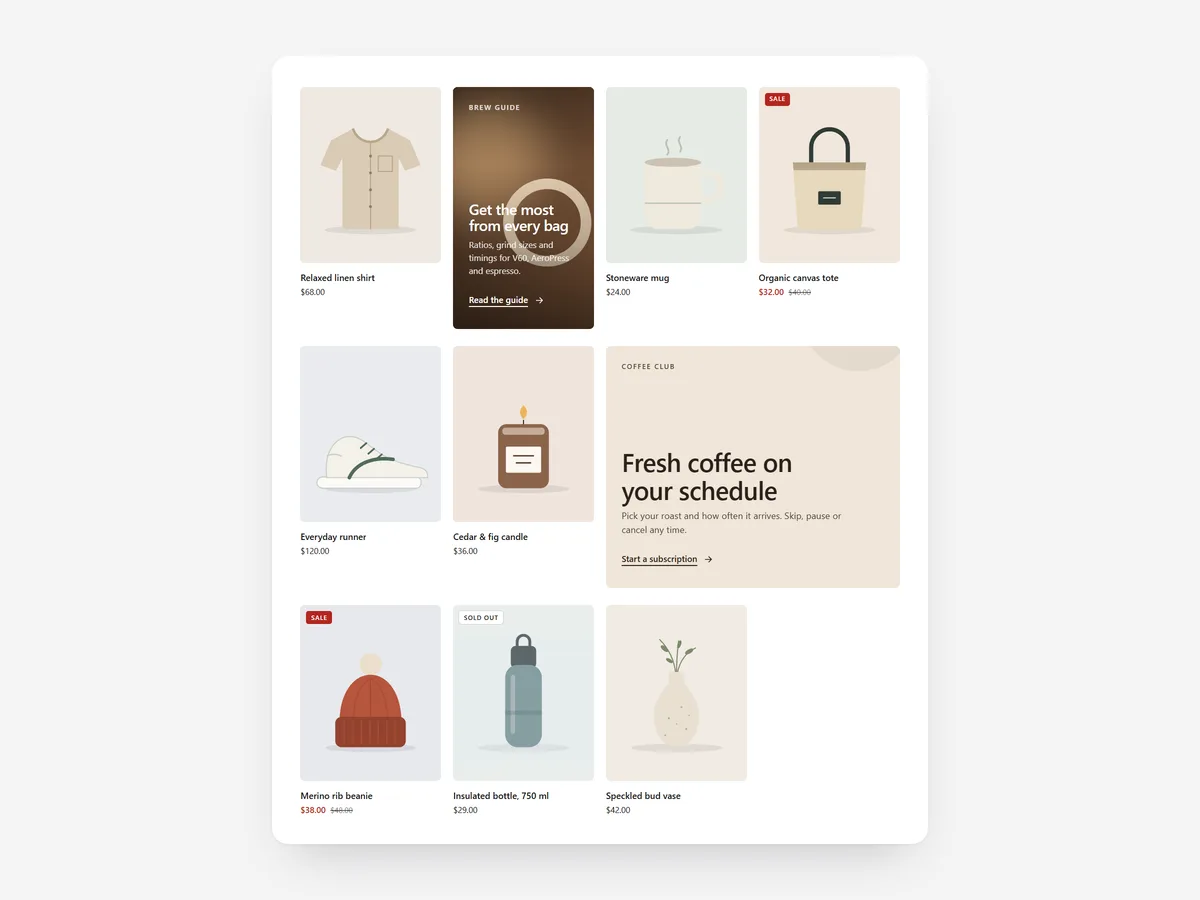
Collection pages are where shoppers browse longest, yet most of them are an endless grid of identical product cards. A single editorial tile between the products can introduce a material, a campaign or a bestseller story exactly where people are already looking.
Why it matters
Premium themes often include promo blocks inside the product grid, but many free and older themes do not, and banners above the grid scroll away after the first row.
Grid Promo Tile sits inside the grid itself. The Collection Header section frames the top of the page; use it to introduce the collection, and the tile to add a message mid-browse.
What the section does
The section inserts a tile into the theme's existing product grid. It is built for collection pages and search-style product listings.
- 01The tile sits inside the product grid at the position you choose, for example as the fifth item.
- 02Use an image, a solid colour card with text, or a looping video.
- 03Make the tile one or two columns wide and set it per collection, so each collection can tell its own story.
- 04It stays in place after filtering and paging, so the grid never breaks or shows the tile twice.
Where to place it and what to write
Put the first tile in the second row, after shoppers have seen a few products but before they start skimming. On long collections, a second tile further down can link to a related collection.
- 01Write one short line and one link; it is a pause, not an article.
- 02Use two-column width for video and one column for colour cards.
- 03Link to something specific: a guide, a bundle or a related collection.
- 04Match the tile's height to the product cards so the grid stays even.
Set it up in three steps
After saving, open the collection, apply a filter and go to page two to confirm the tile stays where you set it. On a phone, check that a two-column tile still reads well. Text uses your theme's font by default, and speed is unaffected because the block renders plain HTML and CSS.
- 01Open Grid Promo Tile in Section Store, choose the tile type, width, position and collection, then check the preview on desktop, tablet and mobile.
- 02Click Theme blocks, then Add to theme; the theme editor opens with the block already placed on the collection template.
- 03Save the theme.
Conclusion
Grid Promo Tile brings editorial moments into the place shoppers spend the most time browsing. The Grid Promo Tile section is a one-time purchase of $12.99 in Section Store, or part of the Enterprise Plan.
Key takeaways
- 01A tile inside the grid reaches shoppers mid-browse, where banners above the grid do not.
- 02Set tiles per collection so each one tells a relevant story.
- 03Position the tile after the first products, never before them.
Explore more