
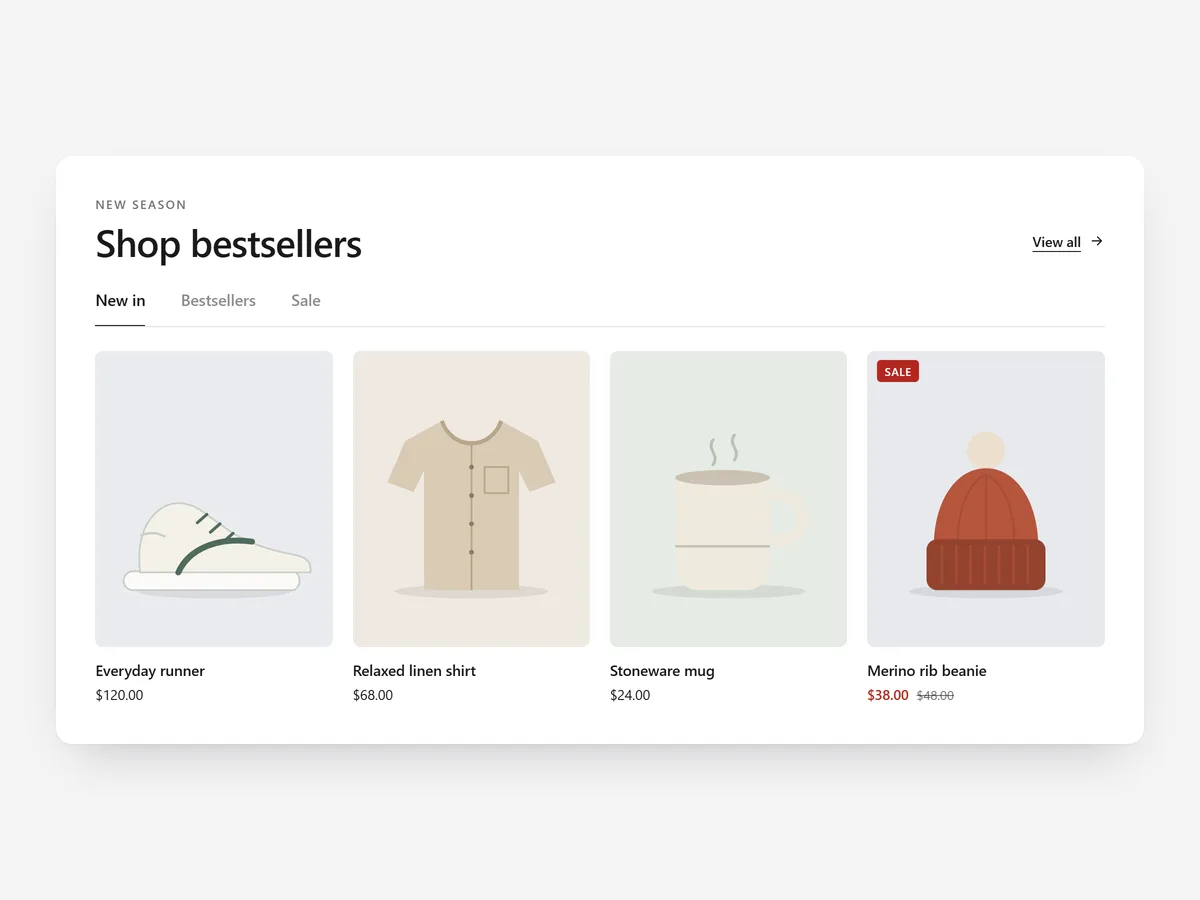
A home page that stacks one product row per collection becomes a long scroll, and shoppers stop before the third row. Tabs let them choose the range they care about and see it in the same place.
Why it matters
Most stores want new arrivals, bestsellers and a seasonal edit on the home page. Stacked, those rows push everything else down, and shoppers skim the first and miss the rest.
Collection Tabs puts the rows behind one set of tabs. Choose it over Circle Menu when you want shoppers to see and buy products right there, and over Featured Product when you have a range to show rather than a single hero item.
What the section does
Collection Tabs shows several collections in one section, each with its own product carousel or grid. It suits the home page and content or campaign pages.
- 01Up to six collections are picked in the app, each becoming one tab.
- 02Tabs can be styled as underlines, pills or a split layout to match the rest of the theme.
- 03Each tab shows a carousel or grid with a second image on hover and a sale badge on reduced products.
- 04Quick add with a size and colour picker skips the product page.
Where to place it and what to write
On the home page, place it below the hero and any category circles. On a campaign page, use it to split an offer into ranges, such as women, men and kids.
- 01Use short tab labels a shopper understands instantly: "New", "Bestsellers", "Under the tree".
- 02Three or four tabs are easier to scan than six; add more only if each range is distinct.
- 03Put the tab most shoppers want first; it is the one they see.
- 04Write a headline that names the choice, such as "Shop by what you need", not "Our collections".
Set it up in three steps
After saving, switch every tab on your phone and try a quick add with a size choice. Text uses your theme's font by default. Speed is unaffected, because the block renders plain HTML and CSS.
- 01Open Collection Tabs in Section Store, pick the collections, choose tab style and carousel or grid, and check the live preview on desktop, tablet and mobile.
- 02Click Theme blocks, then Add to theme; the theme editor opens with the block already placed.
- 03Move it to its final position and save.
Conclusion
Collection Tabs shows several ranges in the space of one, with quick add on the spot. The Collection Tabs section is a one-time purchase of $19.99 in Section Store, or part of the Enterprise Plan.
Key takeaways
- 01Tabs replace a stack of product rows with one compact, shopper-controlled section.
- 02Quick add with size and colour lets shoppers buy without opening each product page.
- 03Fewer, clearly different tabs work better than six overlapping collections.
Explore more




