
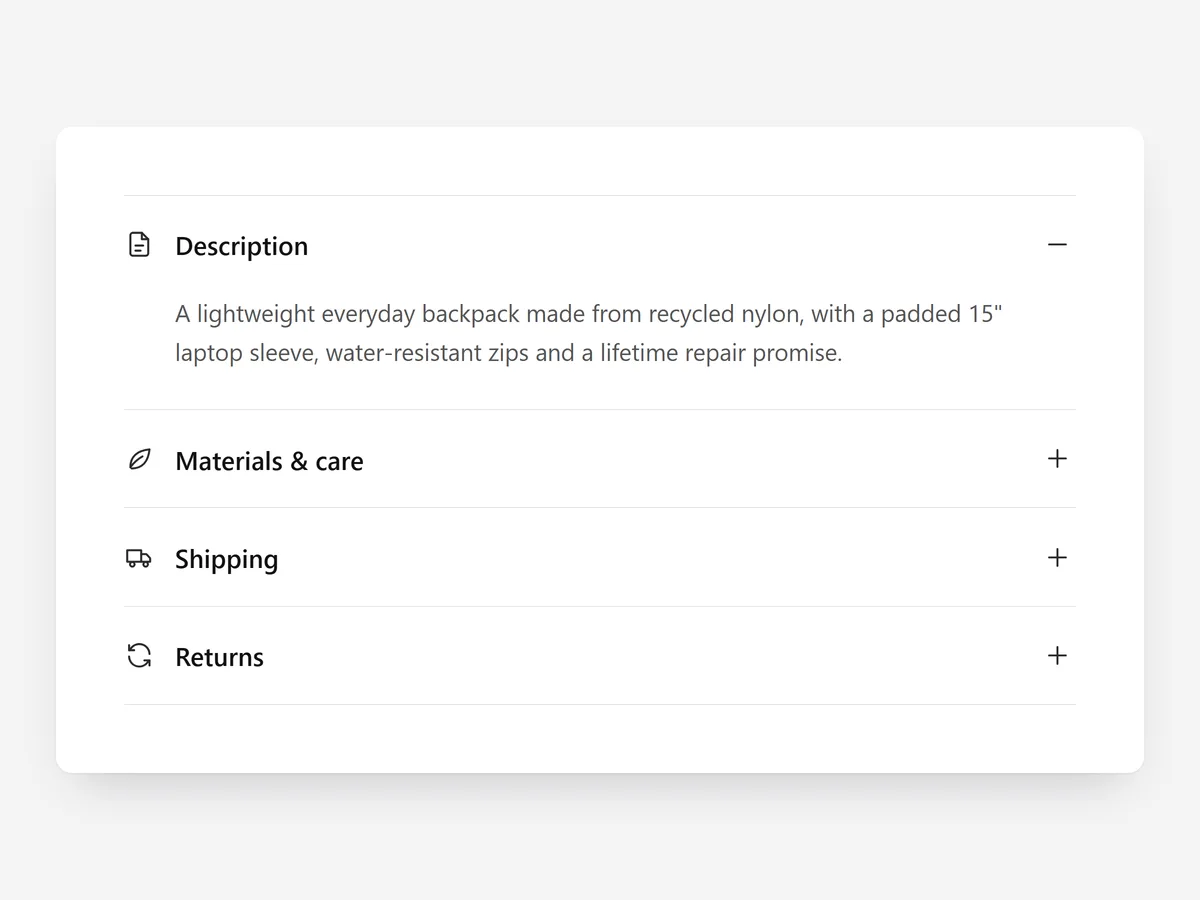
A product page has to carry a lot: description, materials, shipping, care. Shown all at once it becomes a wall of text, and the shopper scrolls past the one detail they needed.
Why it matters
Shoppers arrive with different questions. One wants dimensions, another wants washing instructions, a third wants the returns window. If everything is printed in one long block, each of them has to read the whole thing.
Cutting the information is not the answer either; a missing detail is a reason not to buy. The task is to keep everything available while showing only what the shopper asks for.
What the section does
Product Tabs groups details into collapsible rows that open one at a time. It is built for product pages and stacks vertically, which suits long content and mobile. For horizontal tabs on desktop, see Product Tabs #2.
- 01Four refined styles let the rows match your theme, from minimal lines to boxed panels.
- 02Rows can pull in product data and metafields, so each product shows its own details without manual copying.
- 03A smooth open and close animation makes it clear which row is active.
- 04Accessible details/summary markup works with keyboards and screen readers.
Where to place it and what to write
Place the rows directly below the add-to-cart button or beneath the short description, where shoppers look for more detail.
- 01Use four to six rows with plain labels: "Size and fit", "Materials", "Shipping and returns".
- 02Put the most asked-about row first and consider leaving it open.
- 03Store product-specific content in metafields and shared content, such as shipping, once.
Set it up in three steps
Afterwards, open every row in the mobile preview and check a few products for empty metafields. Confirm the theme font is used. Speed is unaffected, because the block renders plain HTML and CSS.
- 01Open Product Tabs in Section Store, pick one of the four styles and add your rows in the visual builder.
- 02Click Theme blocks, then Add to theme; the theme editor opens the product template with the block placed.
- 03Connect metafields where needed and save.
Conclusion
Collapsible rows keep every detail one tap away without burying the buy button. The Product Tabs section is one of the 14 free sections in Section Store.
Key takeaways
- 01Group details into a few clearly labelled rows.
- 02Pull product-specific content from metafields.
- 03Keep the main description visible, not in a closed row.
Explore more




