Long home pages and landing pages tend to flatten into a row of similar blocks. A banner that moves with the scroll gives the shopper a pause and a sense of place, the visual equivalent of turning a page. Used once or twice, it makes the page feel built rather than assembled.
Why it matters
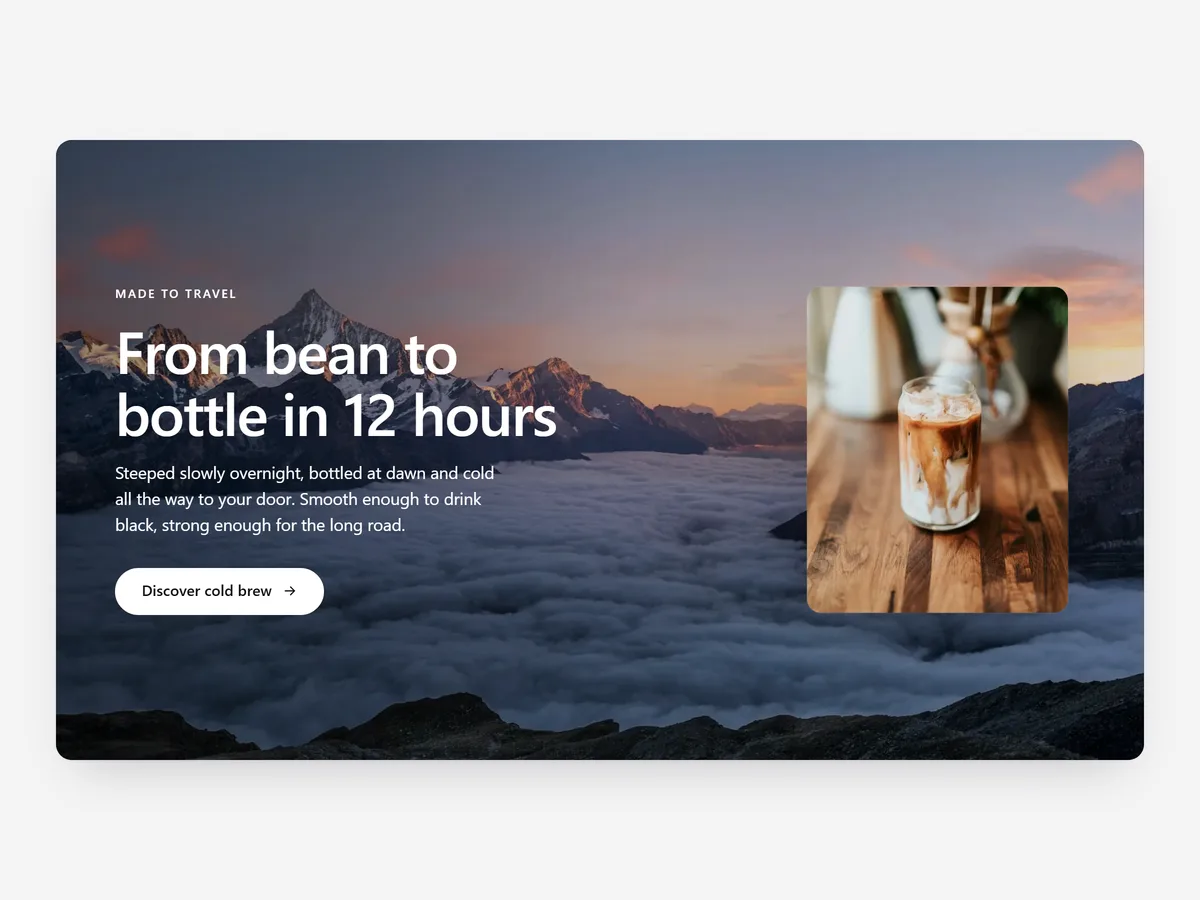
A static full-width image between two product rows is easy to scroll past; it looks like padding. When parts of that image move at different speeds, or the image opens up to full width as it comes into view, the eye stops for a moment and the message on it gets read.
The risk with parallax has always been jerky motion on phones and discomfort for people sensitive to movement. Those are the details that decide whether the effect feels polished or cheap.
What the section does
Parallax Banner works on the home page, collection landing pages and brand or campaign pages.
- 01Choose layers moving at their own speed, a scroll zoom that grows the image to full width, or a fixed image window.
- 02Use a background, floating elements and cut-out product layers to build real depth from your own images.
- 03Motion stays smooth on phones, and shoppers who ask for reduced motion see a still image.
- 04The motion plays in the builder preview, so you see the effect while you set it up.
Where to place it and what to write
Use it as a break between content blocks on the home page, or to introduce a collection. For a multi-step story, Scroll Story is the better choice; Parallax Banner carries one message.
- 01Write one short line on the banner, such as a collection name or a single promise.
- 02Use cut-out product images as floating layers so the product itself moves forward.
- 03Limit parallax to one or two banners per page.
- 04Add a button only if the banner leads somewhere specific.
Set it up in three steps
After saving, scroll through the mobile preview to check the motion and crop, and make sure the text uses your theme font. Speed is unaffected because the block renders plain HTML and CSS.
- 01Open Parallax Banner in Section Store, choose a mode and add your layers in the visual builder.
- 02Click Theme blocks, then Add to theme, and the theme editor opens with the block already placed.
- 03Place it between the sections you want to separate and save.
Conclusion
Parallax Banner gives a long page rhythm when you use it sparingly. The Parallax Banner section is a one-time purchase of $14.99 in Section Store, or part of the Enterprise Plan.
Key takeaways
- 01A moving banner makes shoppers pause between sections and read one message.
- 02Cut-out product layers create depth from images you already have.
- 03Reduced-motion support and smooth phone behaviour keep the effect comfortable.
Explore more