
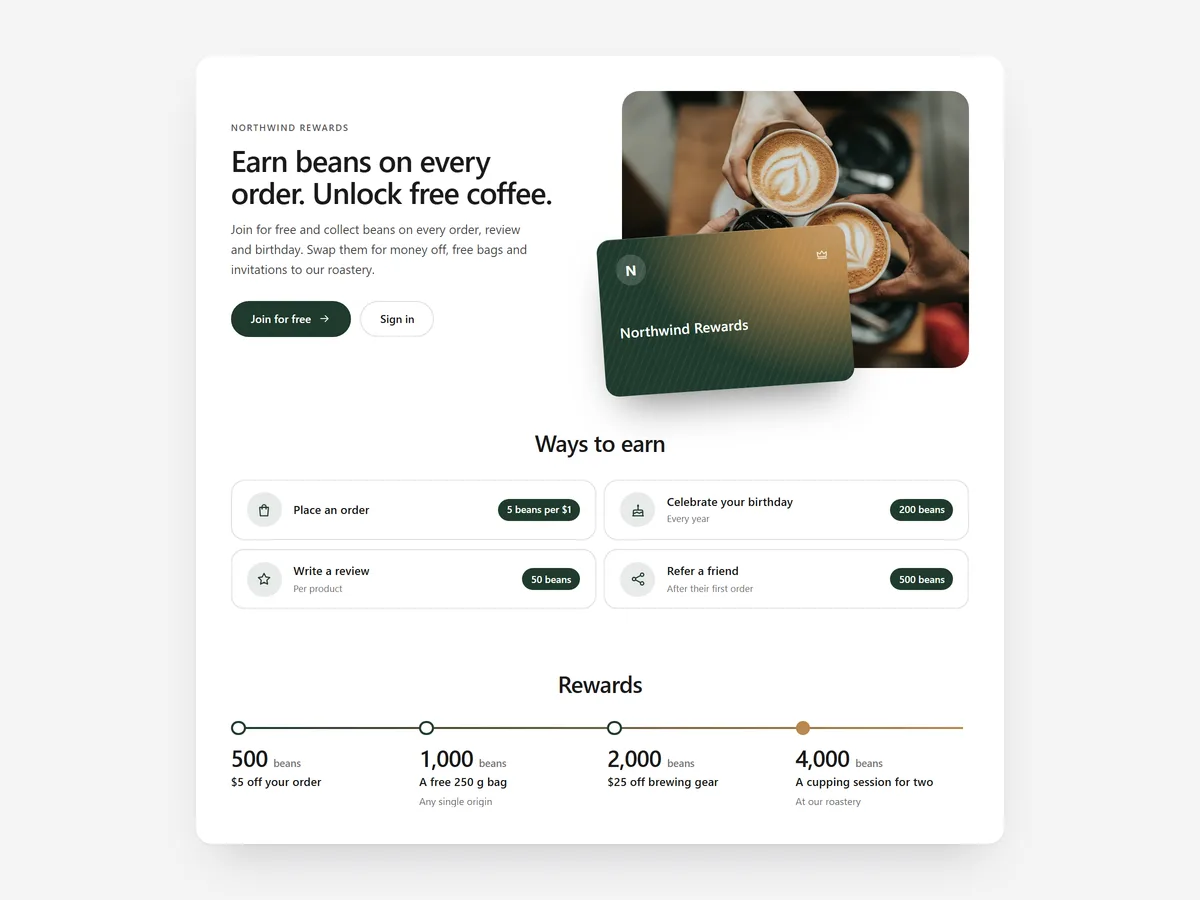
A loyalty program only brings customers back if they understand it. Points and tiers that are explained in a small widget leave customers unsure what they are earning, so they forget about the program after the first order.
Why it matters
Loyalty apps handle points and rewards in the background, but the page that explains the program is often an afterthought: a plain page with a paragraph of text, or nothing beyond a floating button. Customers cannot see what a tier is worth or how a referral works.
Rewards & Referral is that explanation page. It does not replace your loyalty app; it links to it. It pairs naturally with the Newsletter section, which brings in new contacts, while this page gives existing customers reasons to return.
What the section does
The section lays out your program in the order customers ask about it. It is built for a dedicated rewards page and works as a short block on the home page or account area.
- 01List the ways to earn and show a rewards ladder, so customers see what each step gets them.
- 02A VIP tier table compares levels on desktop and turns into tabs on phones.
- 03Include your referral offer and a FAQ that answers the common questions about points.
- 04Signed-in customers see a "View my rewards" button that takes them straight to their balance.
Where to place it and what to write
Create a rewards page and link it from the main menu and the footer. Add a short version on the home page for returning customers.
- 01Lead with the first reward a new member can reach, not the top tier.
- 02Explain earning in plain actions: "Get points for every order and review".
- 03Keep tier names and benefits identical to those in your loyalty app.
- 04Answer how long points last and whether they expire in the FAQ.
Set it up in three steps
After saving, sign in as a test customer to confirm the "View my rewards" button appears, and check the tier tabs on a phone. Text uses your theme's font by default. Speed is unaffected, because the block renders plain HTML and CSS.
- 01Open Rewards & Referral in Section Store, fill in ways to earn, rewards, tiers, referral and FAQ, then check the preview on desktop, tablet and mobile.
- 02Click Theme blocks, then Add to theme; the theme editor opens with the block already placed.
- 03Save the page.
Conclusion
Rewards & Referral gives your loyalty program a page customers actually understand. The Rewards & Referral section is a one-time purchase of $12.99 in Section Store, or part of the Enterprise Plan.
Key takeaways
- 01A clear rewards page makes points and tiers worth caring about.
- 02Keep every reward and tier identical to what your loyalty app provides.
- 03Signed-in customers get a direct link to their own rewards.




