
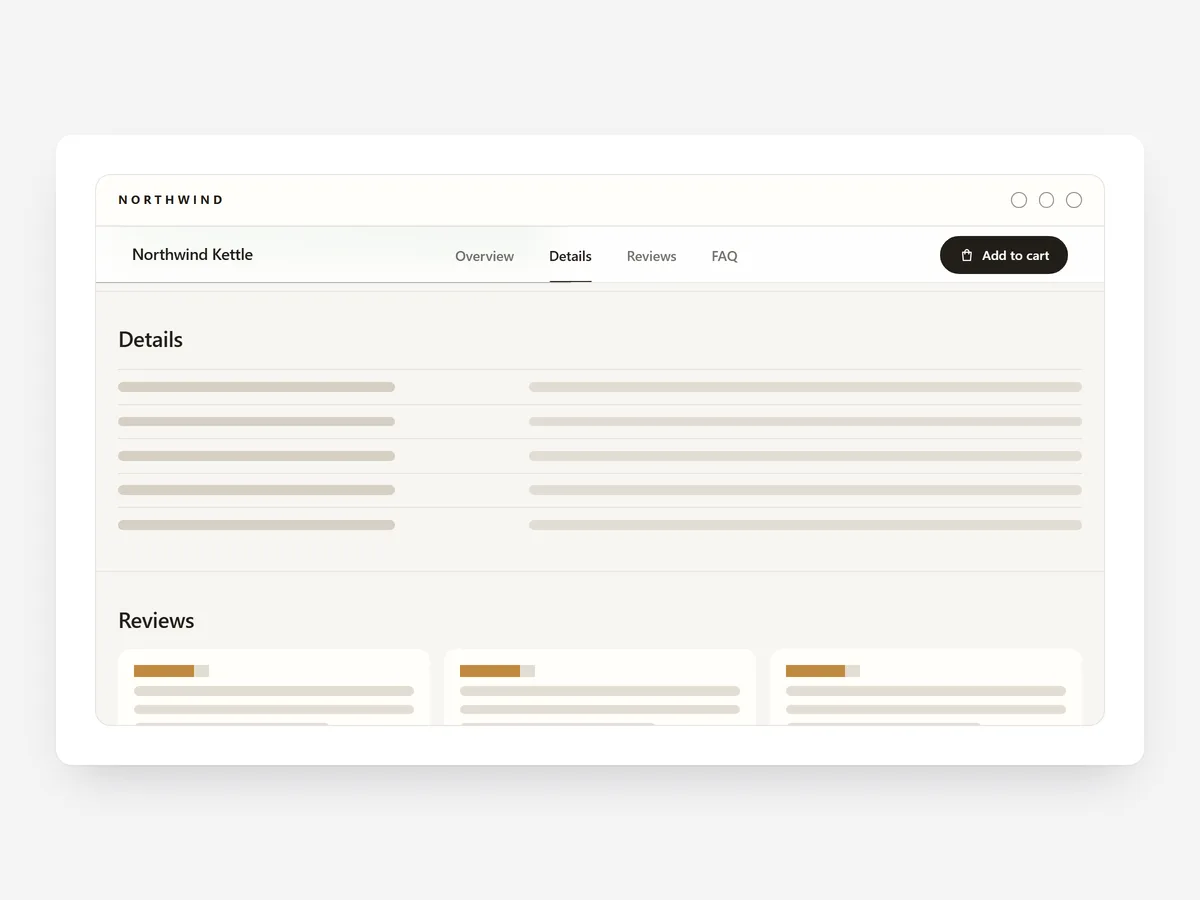
Long product pages hold everything a careful buyer needs: specs, reviews, FAQs, care notes. But a shopper looking only for reviews has to scroll past all the rest, and many give up halfway. A sticky bar of section links lets them jump straight to their answer.
Why it matters
Detailed pages help considered purchases, but they make the page feel endless on a phone. Shoppers lose track of where they are and how much is left, and the add-to-cart button scrolls far out of sight.
Section Navigator adds a table of contents for the page sections themselves. It is meant for product and landing pages; for blog posts with headings, the Article Toolkit is the better fit. Compared with Product Tabs, it keeps all content visible on the page instead of hiding it behind tabs.
What the section does
Section Navigator builds a sticky bar of links to the sections below and highlights the one in view. It fits long product pages, landing pages and content pages.
- 01It can appear as a tabs bar, floating pills or side dots, depending on how present it should be.
- 02It finds your page sections automatically, so you do not have to set up anchor links by hand.
- 03It sits below your sticky header on desktop and docks at the bottom on phones, within thumb reach.
- 04On product pages it can include an add-to-cart button, so buying stays one tap away.
Where to place it and what to write
Place it just below the main product block or the hero, so it becomes sticky once shoppers start scrolling into detail.
- 01Keep link names to one or two words: "Specs", "Reviews", "FAQ".
- 02Show four to six links; more makes the bar scroll sideways.
- 03Use side dots on visual landing pages and the tabs bar on information-heavy product pages.
Set it up in three steps
After saving, scroll the page on your phone: the bar should dock at the bottom, highlight the right section and not overlap other sticky bars. Text uses your theme's font by default. Speed is unaffected, because the block renders plain HTML and CSS.
- 01Open Section Navigator in Section Store, choose a style, review the detected sections and check the live preview on desktop, tablet and mobile.
- 02Click Theme blocks, then Add to theme; the theme editor opens with the block already placed.
- 03Move it under the main product block and save.
Conclusion
Section Navigator lets shoppers skip to the part of a long page they care about without losing the add-to-cart button. The Section Navigator section is a one-time purchase of $9.99 in Section Store, or part of the Enterprise Plan.
Key takeaways
- 01A sticky section bar makes long product and landing pages scannable.
- 02It finds sections automatically and highlights the one in view.
- 03Use it for page sections; use the Article Toolkit for blog headings.
Explore more




