
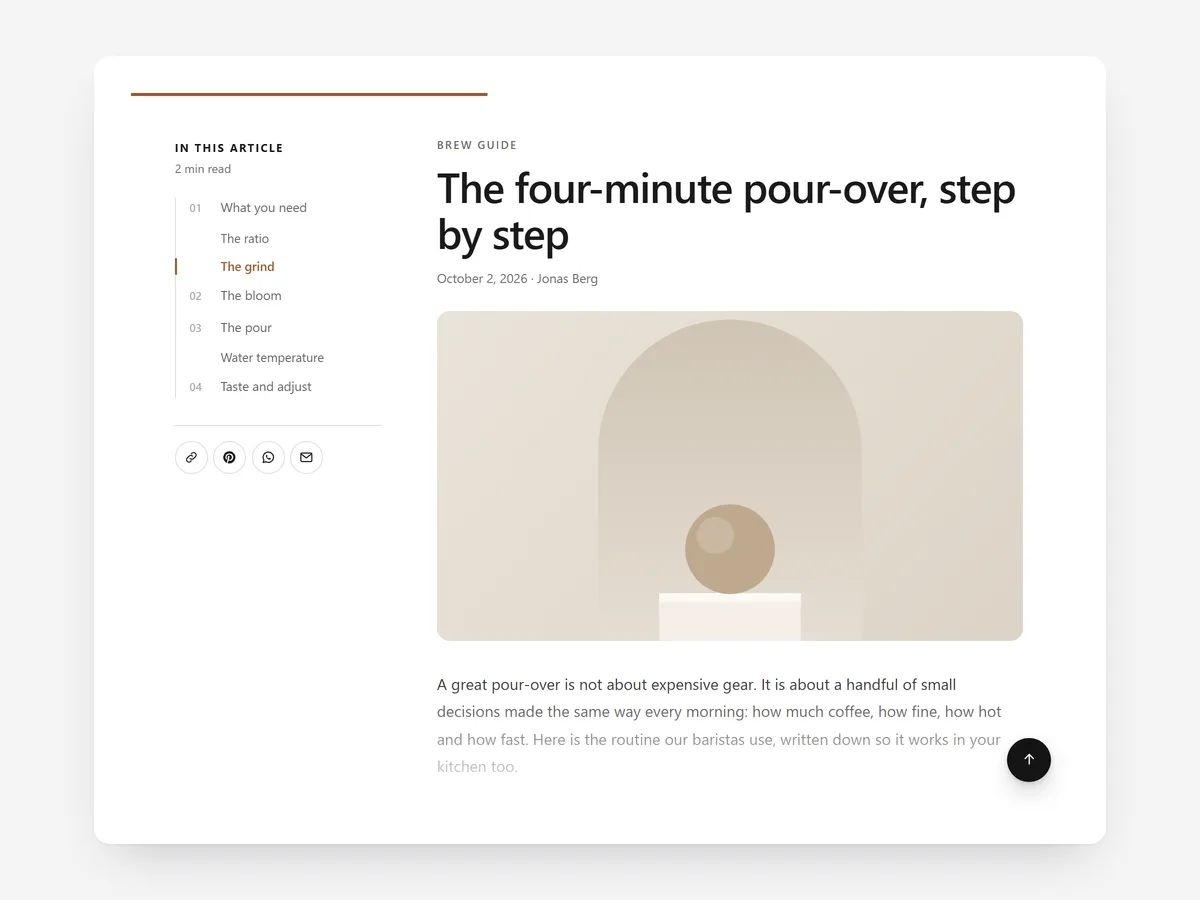
A long guide on a store blog can answer a buyer's questions better than any product page. But a wall of text with no overview tells readers neither what is coming nor how long it will take, so many leave after the first screen.
Why it matters
Store blogs often publish careful buying guides and how-tos that then sit in a theme template built for short news posts. There is no contents list, no sense of progress and no reason to trust who wrote it.
Article Toolkit adds what readers expect from a good long read. It is built for blog posts and their headings; for product and landing pages made of sections, use the Section Navigator. To show posts on the home page, use Journal Highlights.
What the section does
Article Toolkit adds reading aids to blog articles, built from each post's own headings.
- 01A sticky contents sidebar or a contents card lists your headings, so readers can jump to the part they need.
- 02A reading progress bar and minutes left show how much of the post remains.
- 03Share buttons work without tracking scripts, so sharing adds no third-party code.
- 04An author box and a back-to-top link give the post a credible close and an easy way back.
Where to place it and what to write
Add it to the blog article template so every post gets it automatically. The contents come from your headings, so the writing work happens in the post itself.
- 01Write headings as answers or questions, such as "How to wash merino", not "Part 2".
- 02Use the sidebar on desktop-heavy blogs and the contents card for shorter posts.
- 03Fill the author box with a real person and one line on why they know the topic.
Set it up in three steps
After saving, read a long post on your phone: the progress bar should move and the contents links should jump to the right heading. Text uses your theme's font by default. Speed is unaffected, because the block renders plain HTML and CSS.
- 01Open Article Toolkit in Section Store, choose sidebar or card, set the author box and check the live preview on desktop, tablet and mobile.
- 02Click Theme blocks, then Add to theme; the theme editor opens on the article template with the block placed.
- 03Save and open an existing post.
Conclusion
Article Toolkit gives long store guides the structure readers need to finish them. The Article Toolkit section is a one-time purchase of $9.99 in Section Store, or part of the Enterprise Plan.
Key takeaways
- 01A contents list and progress bar help readers stay with long blog posts.
- 02The contents build from your headings, so clear subheadings matter.
- 03Share buttons add no tracking scripts to your pages.
Explore more




