
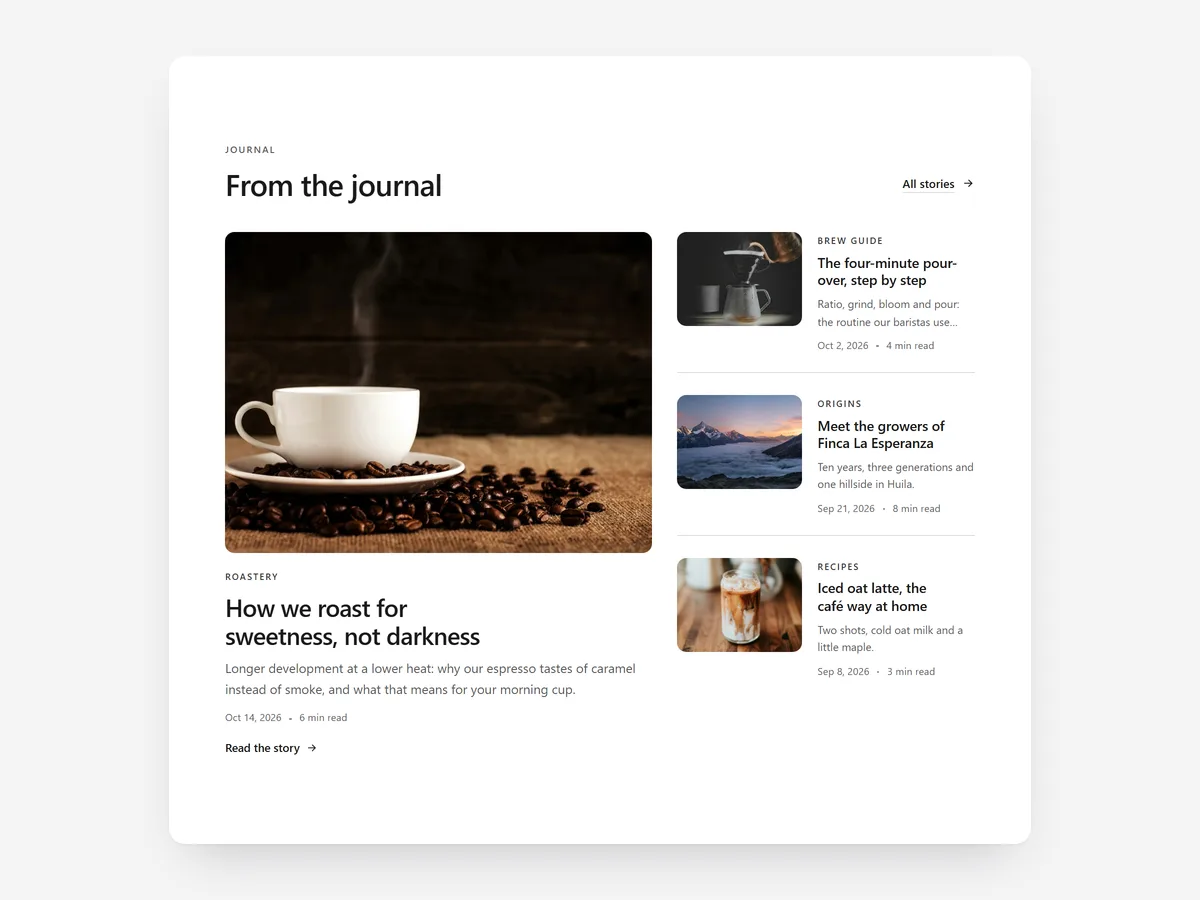
Many stores publish guides, recipes and stories that hardly anyone finds, because the blog sits behind a footer link. Showing those posts on the home page and next to related products puts your expertise where buying decisions happen, and gives shoppers a reason to stay on the site.
Why it matters
A blog post about how to care for linen is useful to someone looking at a linen shirt, yet it usually lives on a separate page that shopper never visits. The content exists, the effort was spent, and it does nothing for sales.
Pulling posts into the store fixes that. On the home page they show the brand knows its subject. On a product page, related posts answer the questions a shopper has before buying, without you copying text into product descriptions.
What the section does
Journal Highlights works on the home page, product pages and content pages.
- 01Show posts as a magazine spread, a carousel or a numbered list, to match how prominent the blog should be.
- 02It fills itself from your blog, featured images included, so new posts appear without editing the section.
- 03A tag filter picks which posts appear, and product pages can show related posts.
- 04Each post shows reading time, author and date, which helps shoppers choose what to open.
Where to place it and what to write
On the home page, place the magazine spread in the lower half, after products. On product pages, use the list with a tag filter for related guides. For a curated layout instead of automatic posts, use Editorial Image & Text.
- 01Give the section a headline that says what readers get, such as "Care guides and recipes".
- 02Tag posts by product type so related posts on product pages actually fit.
- 03Show three to six posts; a full archive belongs on the blog page.
- 04Make sure every post has a featured image, since empty slots look broken.
Set it up in three steps
After saving, check the carousel or list in the mobile preview and confirm titles use your theme font. Speed is unaffected because the block renders plain HTML and CSS.
- 01Open Journal Highlights in Section Store, choose a layout and the blog or tag in the visual builder.
- 02Click Theme blocks, then Add to theme, and the theme editor opens with the block already placed.
- 03Place it on the page and save.
Conclusion
Journal Highlights puts the content you already wrote in front of shoppers who need it. The Journal Highlights section is a one-time purchase of $12.99 in Section Store, or part of the Enterprise Plan.
Key takeaways
- 01Blog posts help sales only when they appear where shoppers make decisions.
- 02The section updates itself from your blog, so new posts appear automatically.
- 03Tag posts carefully so related posts on product pages actually match.
Explore more




