
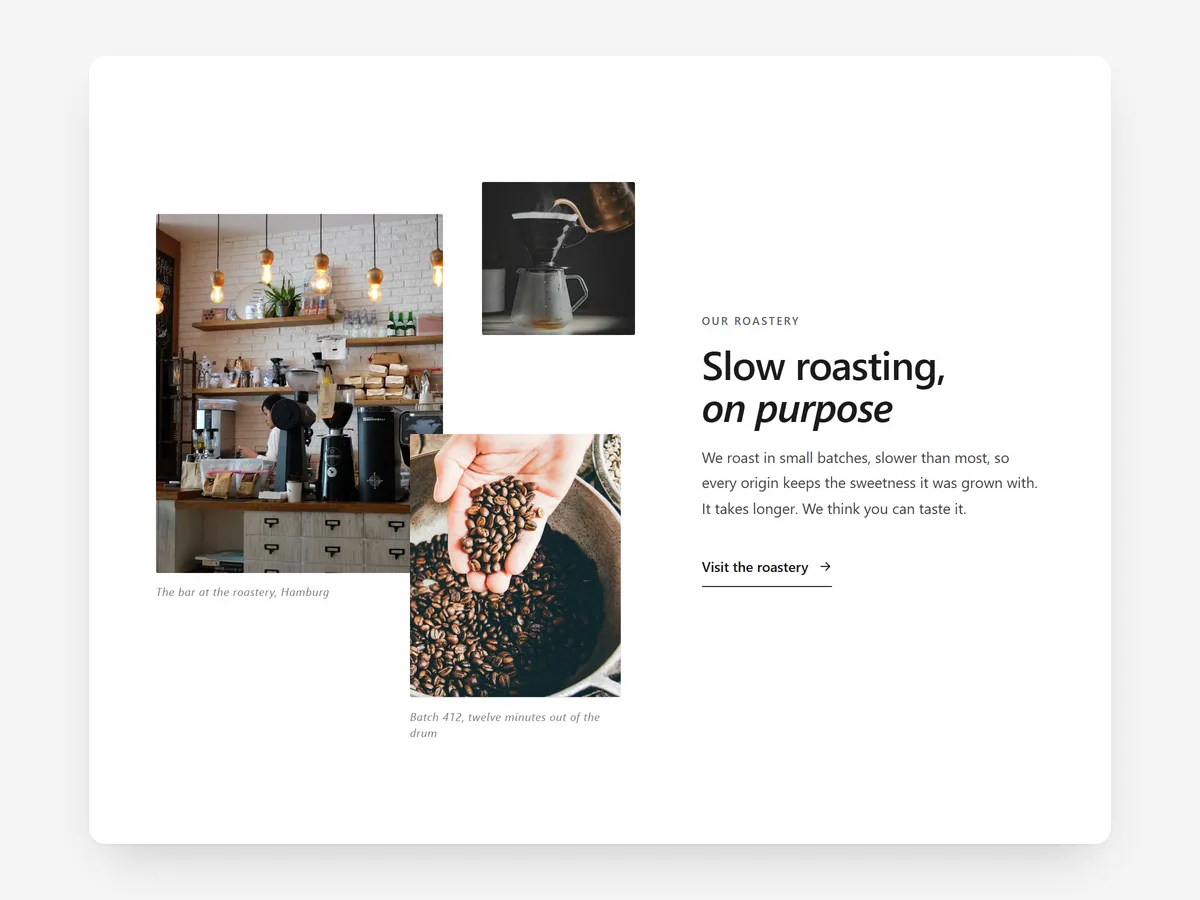
The standard image-with-text block is everywhere: picture left, paragraph right, button below. It does the job but signals nothing about your brand. Fashion, interiors and lifestyle shoppers are used to magazine layouts, and a page that reads like one tells them the brand cares about how things look.
Why it matters
When every content block has the same layout, a brand page or lookbook feels like a template, even if the photography is good. The shopper skims, because nothing tells them which part matters.
Editorial layouts create that emphasis. An overlapping collage shows a product in context, a pull quote stops the eye on one sentence, and staggered columns give a story some rhythm. It is the difference between a page that lists information and one that has a point of view.
What the section does
Editorial Image & Text suits the home page, about and brand pages, lookbooks and collection landing pages.
- 01Choose an overlapping collage, zig-zag rows, staggered columns or a pull quote, depending on the story.
- 02Overlapping images carry captions and gain gentle depth as the shopper scrolls.
- 03Content appears with a wipe, rise or fade, which switches off for shoppers who prefer reduced motion.
- 04Italic accents, numbering and an optional editorial serif give the text a magazine feel.
Where to place it and what to write
Use the collage to open a lookbook or collection page, zig-zag rows for a brand story, and the pull quote between product rows on the home page. For tiles of many messages, Bento Grid fits better.
- 01Write a headline with a point of view, such as "Made to be worn every day", not "About us".
- 02Keep captions short and factual: material, place, product name.
- 03Use numbering only when the order matters, like steps or chapters.
- 04Pair one wide image with one detail shot in a collage.
Set it up in three steps
After saving, check how the overlapping images stack in the mobile preview, and decide whether the theme font or the editorial serif suits your brand. Speed is unaffected because the block renders plain HTML and CSS.
- 01Open Editorial Image & Text in Section Store, pick a layout and add images and copy in the visual builder.
- 02Click Theme blocks, then Add to theme, and the theme editor opens with the block already placed.
- 03Place it on the page and save.
Conclusion
Editorial Image & Text gives content pages emphasis and rhythm instead of a template look. The Editorial Image & Text section is a one-time purchase of $12.99 in Section Store, or part of the Enterprise Plan.
Key takeaways
- 01Magazine layouts give brand and lookbook pages a point of view.
- 02Collages, zig-zag rows, columns and pull quotes each suit a different kind of story.
- 03Reveals respect reduced motion, and the serif option should match the theme.
Explore more




