
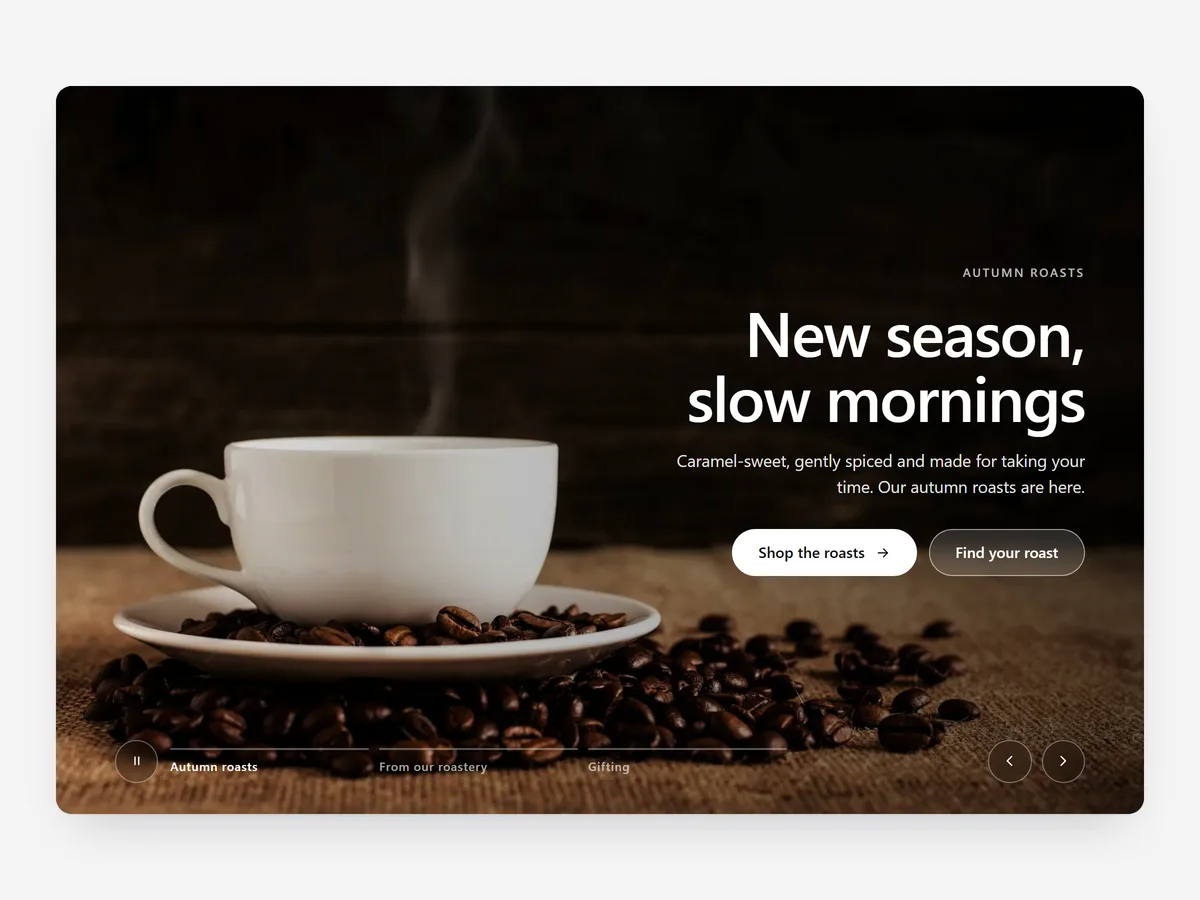
The first screen of a home page is the most contested space in a store. When a new collection, a sale and a bestseller all want it, a slideshow lets them share. It only works if visitors can tell there are more slides, control the pace and see the first one fast.
Why it matters
Classic sliders earned a bad reputation: slow first image, slides that change before you finish reading, no hint how many there are.
A good slideshow fixes each of those problems. Progress segments show how many slides exist and how long each stays, a pause button hands control back, and a fast first slide means the hero never sits empty while the rest loads. Then rotation becomes useful.
What the section does
Hero Slideshow is made for the top of the home page and also works at the top of campaign or collection landing pages.
- 01Choose full bleed, split or peeking cards, so the hero matches your brand rather than a generic slider look.
- 02Fade, slide or slow-zoom transitions set the pace, from calm to energetic.
- 03Progress segments, a pause button and swipe support let shoppers see and control where they are.
- 04The first slide loads fast, and any slide can be a video instead of an image.
Where to place it and what to write
Put it at the very top of the home page. Each slide gets its own copy and button, so treat every slide as a small ad. If you have one message only, use a single hero instead; if you want type to carry the message, see Statement Hero.
- 01Use two to four slides; beyond that the later ones are rarely seen.
- 02Put your most important campaign on the first slide.
- 03Keep each headline to a few words and each button specific, such as "Shop the summer edit".
- 04Check that text stays readable over every image, not just the first.
Set it up in three steps
After saving, swipe through the mobile preview to check crops and text on each slide, and confirm headlines use your theme font. Speed holds up because the block renders plain HTML and CSS and prioritises the first slide.
- 01Open Hero Slideshow in Section Store, add slides and pick a layout and transition in the visual builder.
- 02Click Theme blocks, then Add to theme, and the theme editor opens with the block already placed.
- 03Move it to the top of the page and save.
Conclusion
A slideshow earns its place when visitors can see, control and quickly load it. The Hero Slideshow section is a one-time purchase of $24.99 in Section Store, or part of the Enterprise Plan.
Key takeaways
- 01Progress segments and a pause button turn a slider into something shoppers can follow.
- 02Two to four slides with the strongest one first beats a long rotation.
- 03Treat each slide as its own ad with a short headline and a specific button.
Explore more




