
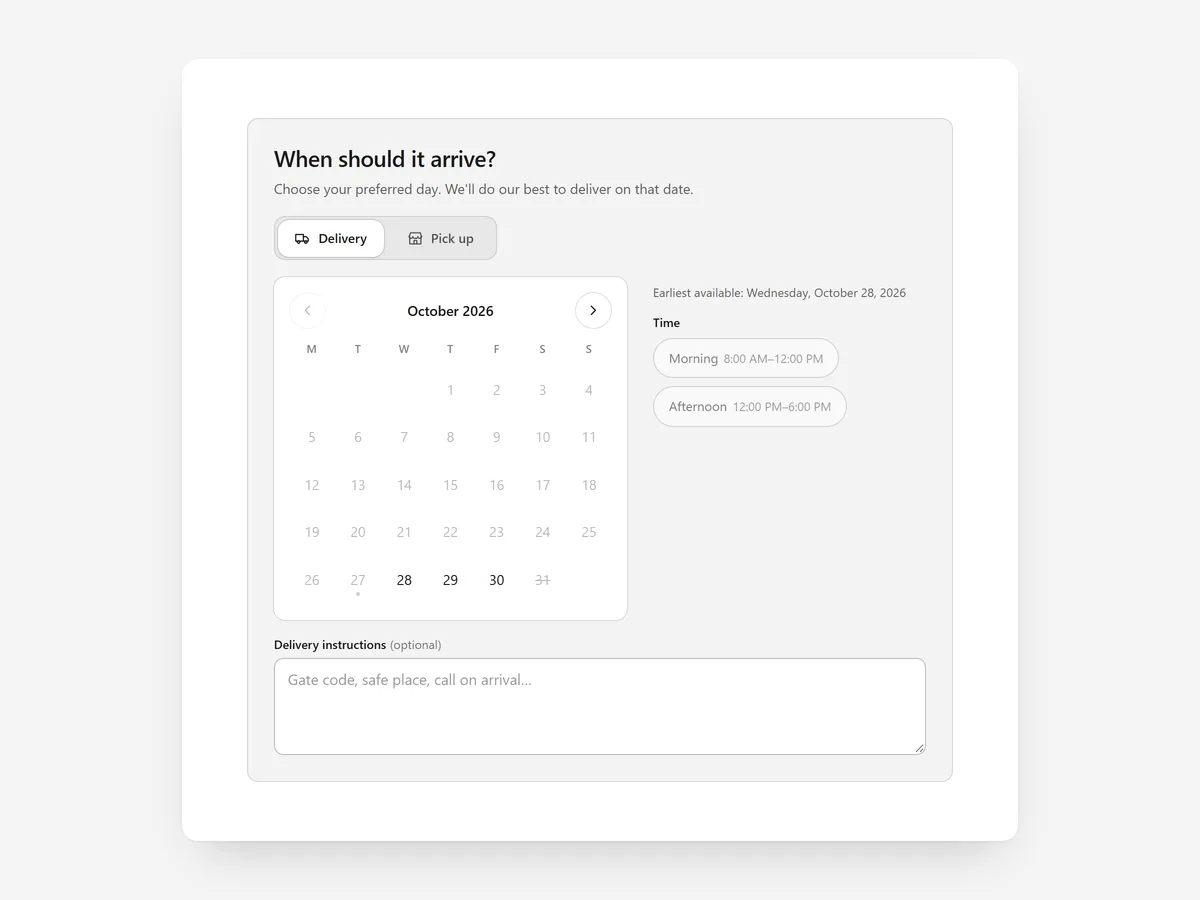
For flowers, cakes, meal boxes or anything bought for an occasion, the date matters as much as the product. A shopper who cannot be sure the order arrives on Saturday will not order on Thursday.
Why it matters
Without a date choice, customers write the requested day into the order note, which is easy to miss in fulfilment and impossible to check against your real capacity. Some ask by email, and some simply buy where they can choose.
This section is different from the Delivery Timeline and the Delivery Area Checker: those inform the shopper, this one collects a decision. Use it when you deliver yourself, run local pickup or sell date-sensitive goods.
What the section does
Delivery Date Picker lets shoppers choose a delivery or pickup date and time slot in the cart, and saves it with the order.
- 01You choose how the date is picked: a month calendar, a horizontal date strip or simple dropdowns.
- 02Lead time, cut-off time, delivery days and blocked dates make sure shoppers can only pick days you can actually serve.
- 03Shoppers can choose time slots, switch between delivery and pickup and add delivery instructions.
- 04The picker works with the keyboard, and the chosen date is saved with the order so fulfilment sees it.
Where to place it and what to write
Place it in the cart, above the checkout button, so the date is set before payment. Mention on product pages that a date can be chosen in the cart.
- 01Use the date strip when most orders are for the next few days, the calendar for planned occasions.
- 02Block holidays and closing days before they come up.
- 03Name the cut-off clearly: 'Order by 2 pm for next-day delivery'.
- 04Keep time slots wide enough that you can meet them.
Set it up in three steps
After saving, place a test order on your phone and confirm the chosen date appears on the order. Check that blocked dates cannot be selected and the theme font is used. Speed is unaffected because the block renders plain HTML and CSS.
- 01Open Delivery Date Picker in Section Store, set the layout, lead time, cut-off, delivery days, blocked dates and slots in the visual builder.
- 02Click Theme blocks → Add to theme; the theme editor opens with the block placed.
- 03Place it on the cart template and save.
Conclusion
Letting shoppers pick a day you can serve turns date worries into orders. The Delivery Date Picker section is a one-time purchase of $14.99 in Section Store, or part of the Enterprise Plan.
Key takeaways
- 01Use it when the delivery day is part of the purchase decision.
- 02Lead times, cut-offs and blocked dates keep choices realistic.
- 03The date is saved with the order, so fulfilment never misses it.
Explore more




