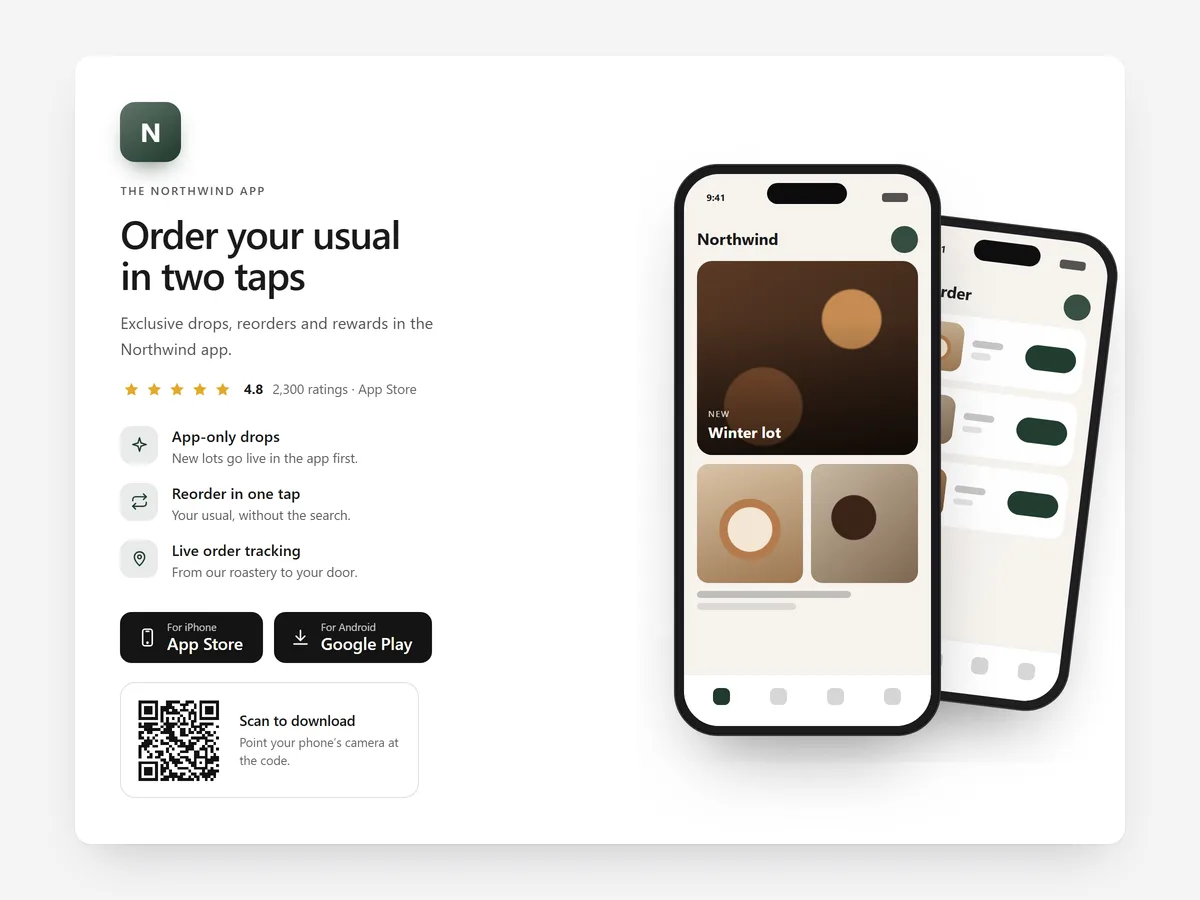
A brand app is only useful if your best customers install it. Shoppers will not search the app stores for it on their own, and a tiny badge in the footer gives them no reason to bother.
Why it matters
Stores that launch an app often announce it once and then rely on a footer link. Desktop visitors cannot install it at all without picking up their phone, and mobile visitors see buttons for both stores and no reason to tap either.
App Download solves both problems: a QR code for desktop, the right store button for phones, and a short list of perks. If you want a single page of links for social profiles instead, the Link in Bio section is the better fit.
What the section does
The section presents your app with screenshots, perks and install paths. It fits the home page, a dedicated app landing page and the account area.
- 01The QR code is generated inside Section Store, so no external QR service is involved.
- 02Phone mockups display your own screenshots, showing what the app looks like before anyone installs it.
- 03Store buttons match the visitor's phone, so iPhone users see the App Store and Android users see Google Play.
- 04List the app's perks and, if you want, add a rating with its source named.
Where to place it and what to write
On the home page, place it in the lower half, after the products and before the footer. Create a dedicated app page and link it from emails and order confirmations, where your customers are already engaged.
- 01Name concrete perks: early access to drops, app-only offers, order tracking.
- 02Show two or three real screenshots rather than many.
- 03Write a short QR label such as "Scan to get the app".
- 04Only show a rating if you name where it comes from.
Set it up in three steps
After saving, scan the QR code from your desktop screen and open the page on both an iPhone and an Android phone to check the right button appears. Text uses your theme's font by default, and speed is unaffected because the block renders plain HTML and CSS.
- 01Open App Download in Section Store, add screenshots, store links and perks, then check the preview on desktop, tablet and mobile.
- 02Click Theme blocks, then Add to theme; the theme editor opens with the block already placed.
- 03Position the block and save.
Conclusion
App Download gives every visitor the right way to install your app and a reason to do it. The App Download section is a one-time purchase of $9.99 in Section Store, or part of the Enterprise Plan.
Key takeaways
- 01A QR code for desktop and matching store buttons for phones remove install friction.
- 02Concrete perks give shoppers a reason to install the app.
- 03Show a rating only with its source named.