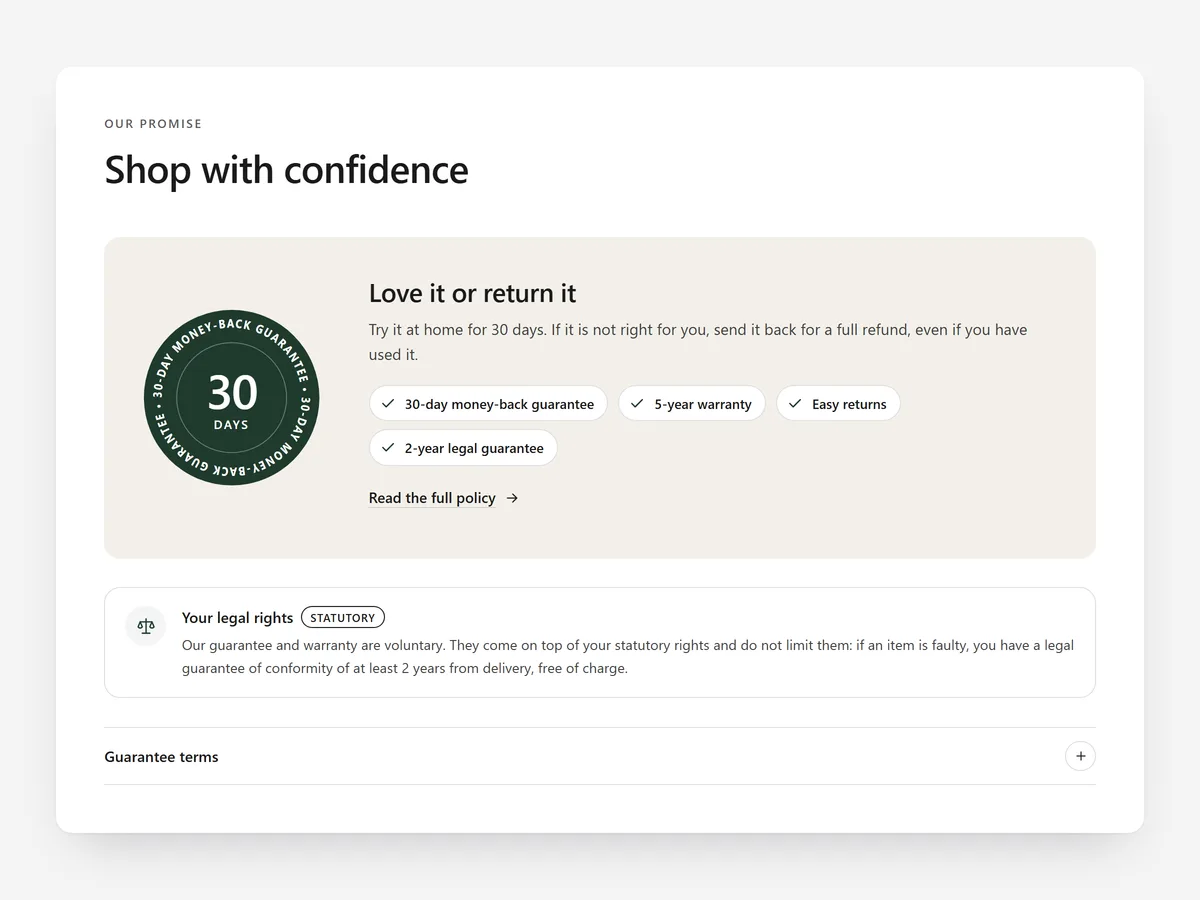
The last doubt before buying is often "what if it breaks or does not fit?". If the answer hides in a policy page, shoppers leave the product to find it, and many never return.
Why it matters
Most stores keep returns and warranty terms in the footer. Someone buying an expensive or technical product wants to know what is covered, for how long and how a return works before paying.
Vague promises backfire too. "Satisfaction guaranteed" without terms reads as marketing, and in the EU a commercial guarantee must be kept apart from statutory rights. Clear structure is more convincing and safer.
What the section does
Guarantee & Warranty explains your terms where Trust Badges only shows icons. It fits product pages first, and also the home page or a guarantee page.
- 01Display a guarantee seal, cards or a coverage timeline, from a quick signal to a full explanation.
- 02Set the warranty per product, listing what is covered and what is not.
- 03Returns are explained in clear steps, answering "how do I send it back?" before anyone asks.
- 04A statutory rights notice and guarantee terms are built in, keeping your promise separate from legal rights.
Where to place it and what to write
On product pages, place the seal or cards just below the add-to-cart button. Use the timeline on high-value products where warranty length sells. On the home page, one seal row near the footer is enough.
- 01Lead with the concrete promise, such as "30-day money-back guarantee", not "Shop with confidence".
- 02List three to five covered and not-covered items in plain words.
- 03Keep returns to three or four steps, each starting with a verb.
Set it up in three steps
Afterwards, check the mobile preview so the seal does not push the add-to-cart button down too far, and confirm the theme font. Speed is unaffected, because the block renders plain HTML and CSS.
- 01Open Guarantee & Warranty in Section Store, choose seal, cards or timeline and enter coverage and returns steps.
- 02Click Theme blocks, then Add to theme; the theme editor opens with the block already placed.
- 03Move it near the buy button and save.
Conclusion
A clear guarantee next to the product answers the last "what if" before checkout. The Guarantee & Warranty section is a one-time purchase of $9.99 in Section Store, or part of the Enterprise Plan.
Key takeaways
- 01State the guarantee where the doubt appears, next to the product.
- 02Spell out what is and is not covered instead of a vague promise.
- 03Keep guarantee terms and statutory rights clearly separate.
Explore more