
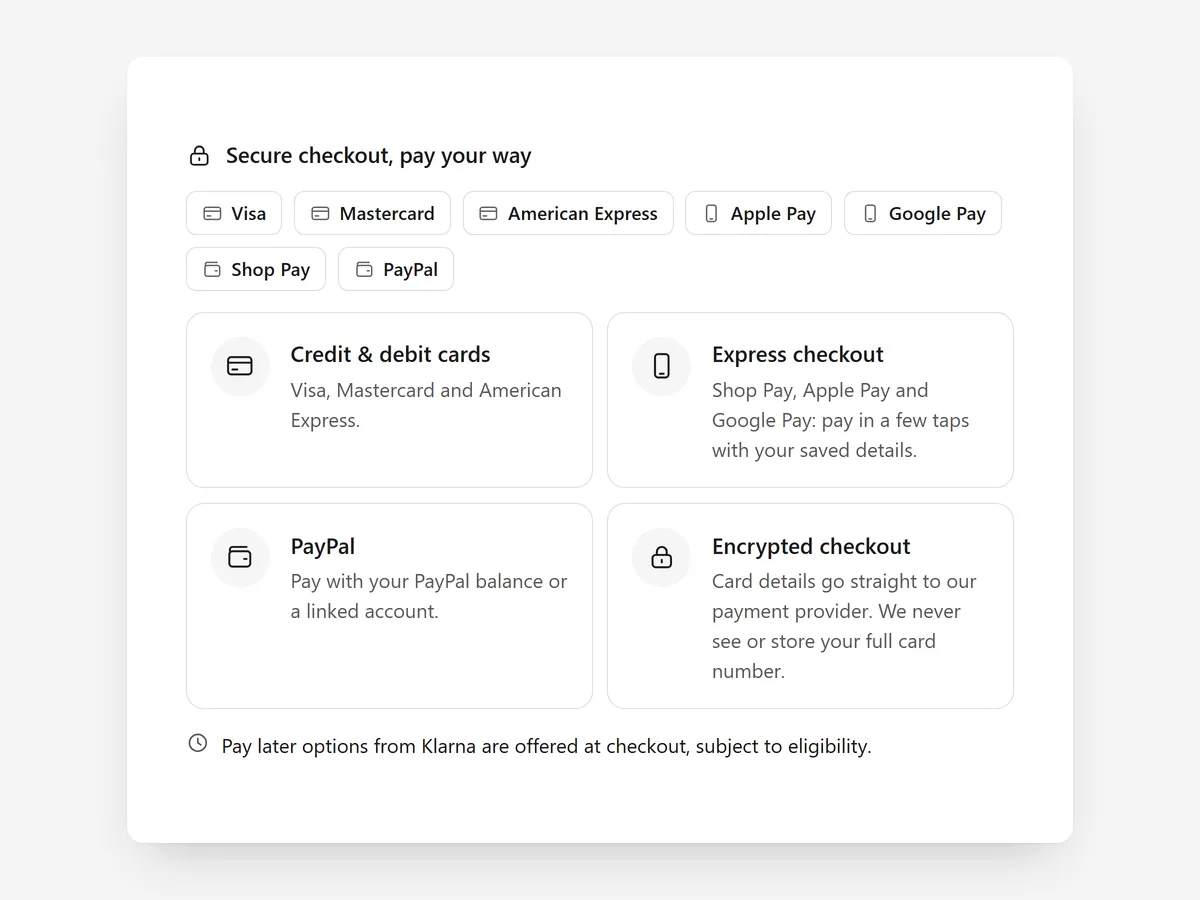
Many shoppers decide whether to buy based on how they can pay. If their preferred method is not visible on the product page, they either start checkout just to find out or leave. Showing the methods next to the buy button removes that guesswork.
Why it matters
Payment methods usually appear only in the footer or at checkout. A shopper who prefers a particular method has to start checkout to learn whether it is accepted.
Pay later needs careful wording in the EU, where consumer credit rules restrict how it is advertised. This section shows the methods your checkout really offers; for seals and guarantees, add the Trust Badges section alongside it.
What the section does
Payment Options places your real payment methods beside the add-to-cart button on the product page, and also works in the cart or on a payment information page.
- 01It shows the payment methods from your checkout with Shopify's official icons, so nothing is out of date or off-brand.
- 02You can display an icon row, method cards or a single line that opens a drawer with the details.
- 03Pay later is mentioned without credit promises, following the wording the EU CCD2 directive expects.
- 04A secure-checkout note and short "How paying works" steps explain what happens after the click.
Where to place it and what to write
On the product page, put the icon row directly under the add-to-cart button, where the payment question comes up. In the cart, place it above the checkout button. Method cards suit a dedicated payment or FAQ page.
- 01Keep the heading short and factual: "Pay with" or "Payment options" is enough.
- 02Use the single line with a drawer on crowded product pages so the buy box stays clean.
- 03Describe pay later as an option at checkout, never as cheap credit or an approval guarantee.
- 04Keep the secure-checkout note to one sentence; long security text makes shoppers more nervous, not less.
Set it up in three steps
After saving, check on mobile that the icons sit on clean lines and the drawer opens easily. Speed is unaffected because the block renders plain HTML and CSS from your settings.
- 01Open Payment Options in Section Store, pick the icon row, cards or line with drawer and edit the steps text in the visual builder.
- 02Click Theme blocks, then Add to theme; the theme editor opens with the block already placed.
- 03Move it under the add-to-cart button and save.
Conclusion
Payment Options answers one of the last questions before a purchase, right where it is asked. The Payment Options section is a one-time purchase of $9.99 in Section Store, or part of the Enterprise Plan.
Key takeaways
- 01Shoppers should see how they can pay before they start checkout.
- 02Icons come from your checkout's methods, and pay later is worded without credit promises.
- 03Pair it with Trust Badges when you also want seals and guarantees.
Explore more




