
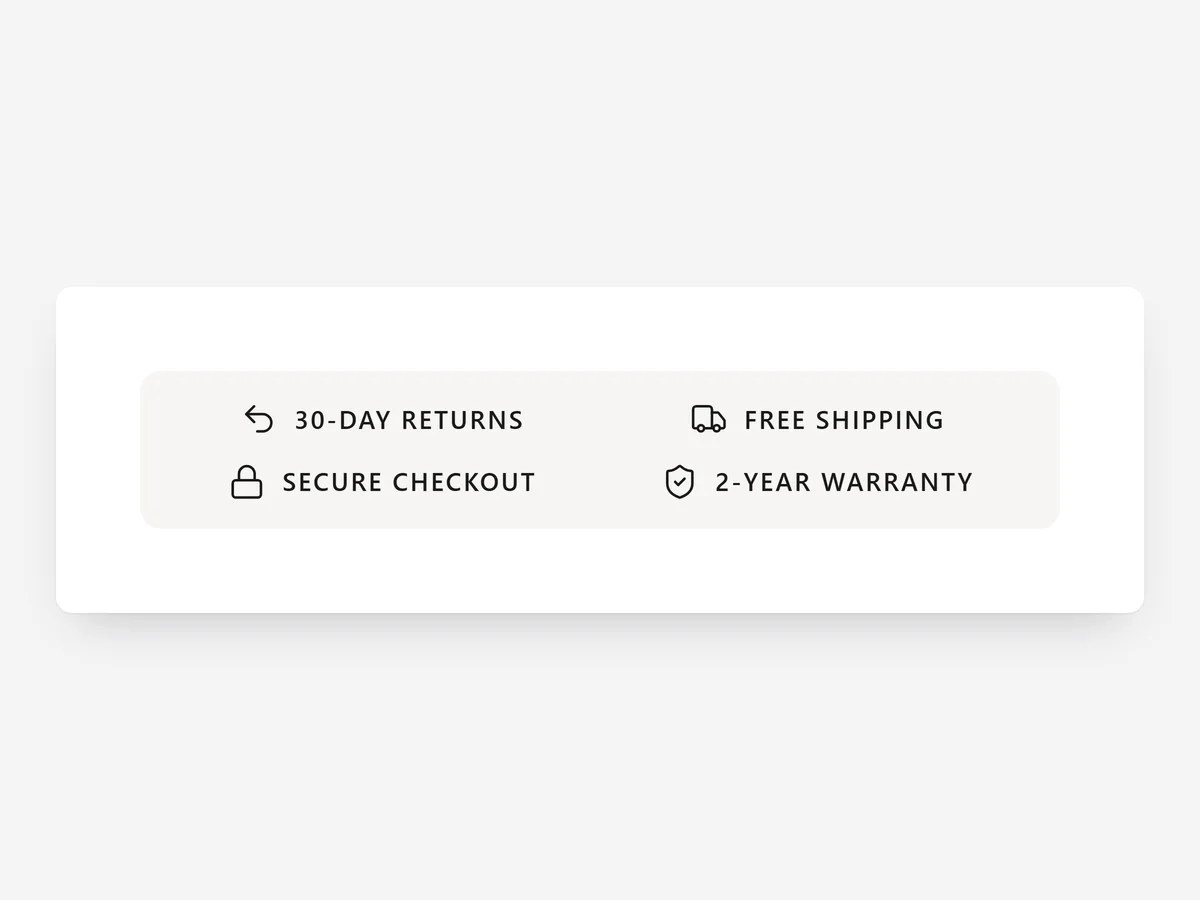
The moment a shopper hovers over the add-to-cart button is when doubts peak: will it arrive in time, can I send it back? A short line of reassurance right there does more than a full trust block further down the page.
Why it matters
Space under the buy button is the most valuable spot on a product page, and also the most crowded. A full badge grid there pushes the description down and makes the buy box feel cluttered.
Trust Badge #2 is built for that tight spot. It is a slim strip, not a grid, so it can carry delivery, returns and payment messages without competing with the button. Pick it over the Trust Badges grid when you want reassurance inside the buy box rather than as a separate block below it.
What the section does
The section adds a narrow trust strip designed for product pages, directly under the add-to-cart button. It can also sit under a featured product on the home page.
- 01Messages either rotate one at a time or sit together in one row, depending on how much space you have.
- 02Pill dots, swipe and pause on hover let shoppers control rotating messages instead of chasing them.
- 03Sixteen line icons cover common promises like shipping, returns and secure payment.
- 04An optional background strip sets the messages apart from the buy box when your theme needs more contrast.
Where to place it and what to write
Place it directly under the add-to-cart button, above variant notes or descriptions. Use the single-row mode on desktop-heavy stores and rotation when space is tight on phones.
- 01Keep each message under about six words: "Free returns within 30 days".
- 02Use two to four messages; with rotation, put the most important first.
- 03State the strongest specific promise, such as a dispatch cut-off time, rather than a generic slogan.
Set it up in three steps
After saving, test swipe and the dots in the mobile preview and confirm messages fit one line on a narrow phone. The strip uses your theme font, and speed is unaffected because it renders plain HTML and CSS.
- 01Open Trust Badge #2 in Section Store, pick a preset, then choose rotating or one row, icons and messages in the visual builder.
- 02Click Theme blocks → Add to theme; the theme editor opens with the block already placed.
- 03Move it right under the buy button and save.
Conclusion
A slim strip under the buy button puts reassurance exactly where the decision happens. The Trust Badge #2 section is a one-time purchase of $12.99 in Section Store, or part of the Enterprise Plan.
Key takeaways
- 01Use this strip inside the buy box and the Trust Badges grid for a fuller block below.
- 02Short, specific messages beat slogans.
- 03Rotation with swipe and pause saves space on phones.
Explore more




