
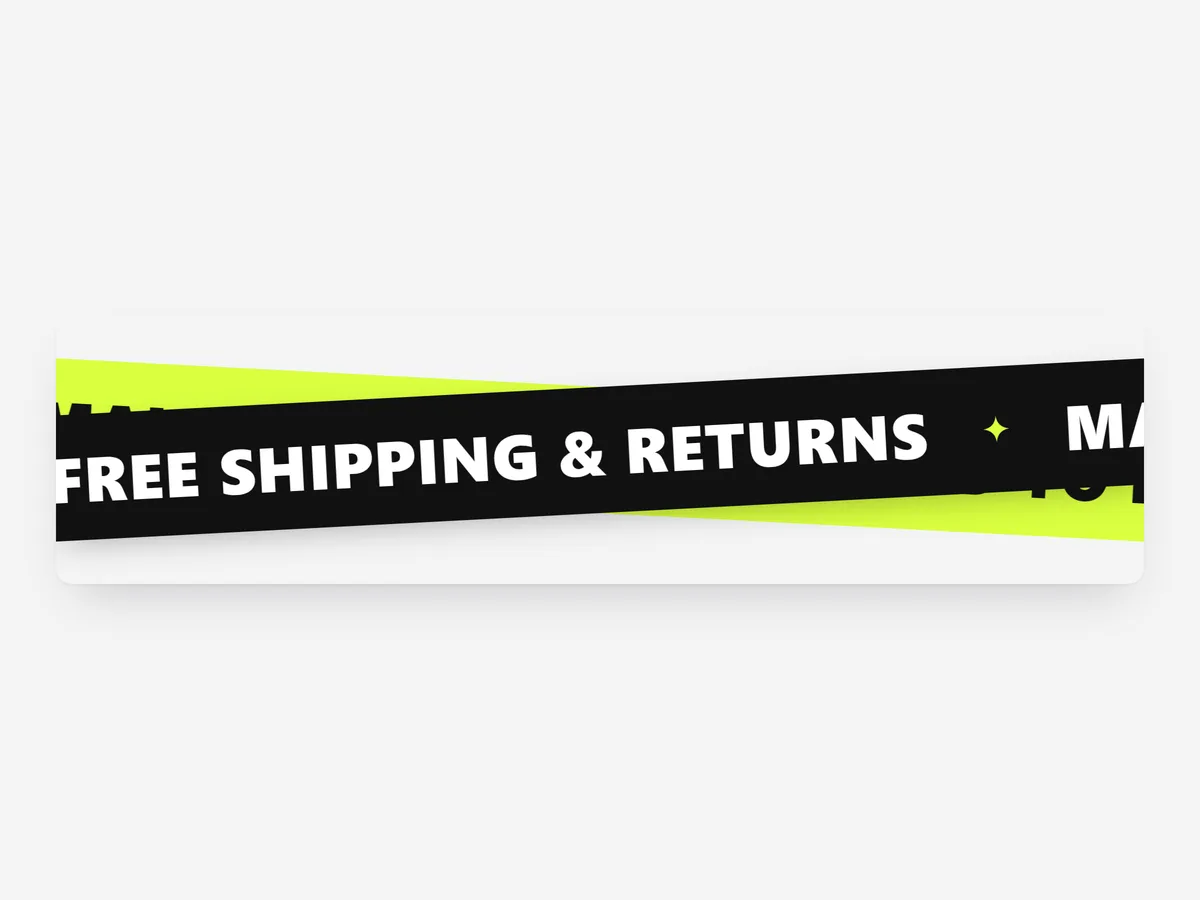
Some messages are not offers but attitude: what the brand stands for, what it is made of, where it ships. A scrolling band carries those short phrases across the page and breaks up a long stack of static sections, so the home page feels less like a template.
Why it matters
Many home pages are a series of identical image-and-text blocks that shoppers skim without registering anything. A moving strip of large type changes the rhythm and resets attention before the next block.
The Marquee is not an announcement bar. For an offer or shipping notice at the top of every page, use the Promotion Bar section. Use the Marquee for brand phrases and partner logos inside the page, as a divider.
What the section does
Marquee loops your phrases and logos without a visible seam. It works best on the home page, campaign landing pages and about pages.
- 01Run one band, two bands moving in opposite directions, or crossed tapes for a more graphic look.
- 02Type can be filled, outlined or alternate between both, which adds contrast without extra colours.
- 03Separate phrases with sparkles, dots, slashes or your own icons, so the band matches the brand.
- 04A pause button and reduced-motion support let visitors who are sensitive to movement stop the band.
Where to place it and what to write
Place the band between the hero and the first collection, or between two content sections that would otherwise blend together. On about pages it can carry your values; on landing pages, the campaign's key words.
- 01Keep each phrase to two to four words; long sentences are unreadable while moving.
- 02Use four to six phrases so the loop does not repeat too visibly.
- 03Save crossed tapes for one moment per page; more than one feels noisy.
- 04Do not put prices or deadlines in the band; nobody waits for them to scroll back.
Set it up in three steps
After saving, watch the band on your phone: the loop should run without a jump and the pause button should be easy to tap. The type uses your theme's font by default. Speed is unaffected, because the block renders plain HTML and CSS.
- 01Open Marquee in Section Store, add phrases or logos, pick a band style and separator, then check the preview on desktop, tablet and mobile.
- 02Click Theme blocks, then Add to theme; the theme editor opens with the block already placed.
- 03Drag it between the sections you want to divide and save.
Conclusion
Marquee adds movement and brand voice between sections without turning the page into a slideshow. The Marquee section is a one-time purchase of $9.99 in Section Store, or part of the Enterprise Plan.
Key takeaways
- 01Use the Marquee for short brand phrases and logos, not for offers or deadlines.
- 02One band per page, placed between similar sections, works as a strong divider.
- 03Pause control and reduced-motion support keep the movement accessible.
Explore more




