
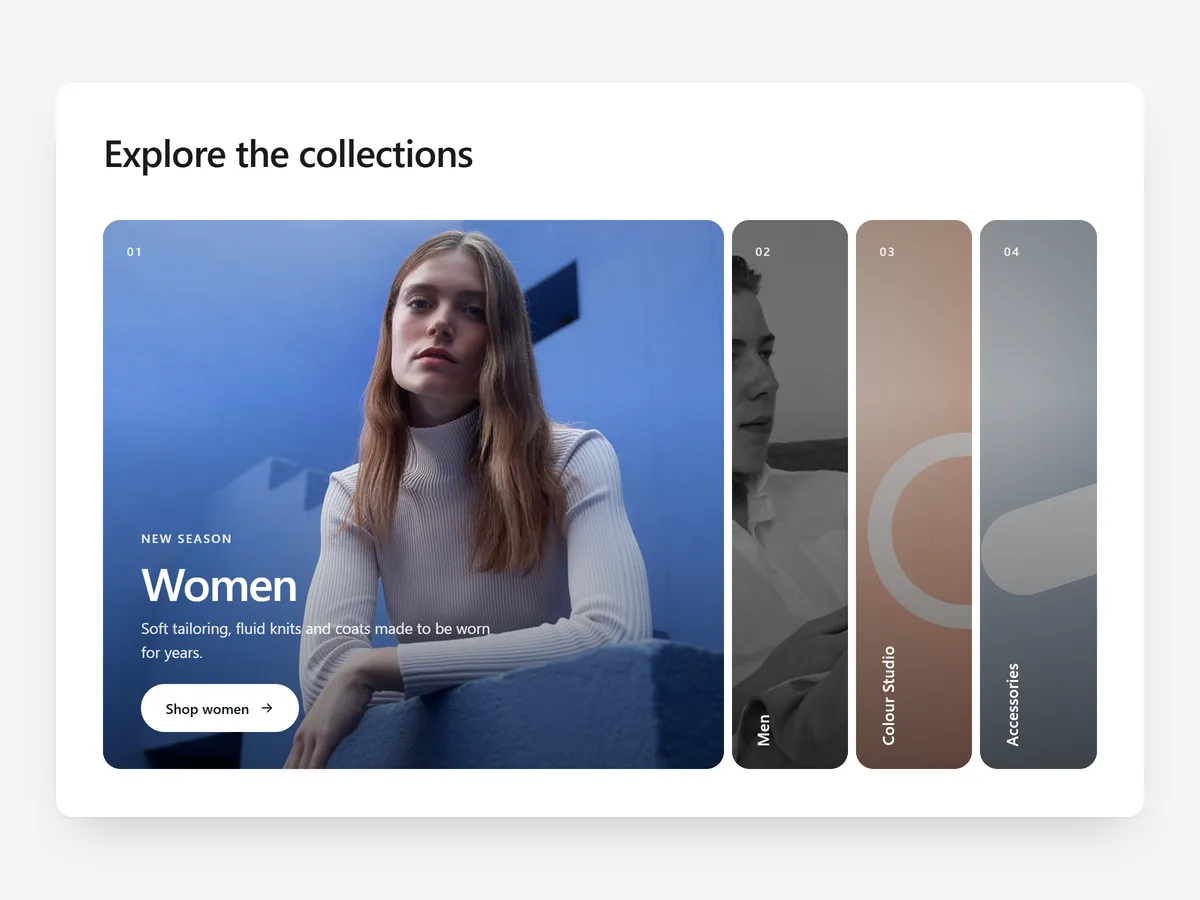
Category tiles in a row all look alike, and a shopper has to read every label to find their way. An accordion shows all options as slim panels and opens the one they point at, so browsing feels like flicking through a set of doors rather than reading a list.
Why it matters
When a store has four to six main categories or campaigns, a grid of equal tiles spreads attention thin. Each image is small, each label competes, and nothing invites a closer look. The visitor scrolls past without choosing.
An accordion keeps every option visible but gives the active one the full space. The image gets room, its text and button appear right there, and the movement pulls the eye onward.
What the section does
Image Accordion suits the home page and campaign or collection landing pages, anywhere you need shoppers to pick a direction.
- 01Panels can sit side by side, as cards or stacked, so the same content fits a wide hero area or a narrower slot.
- 02Closed panels show rotated titles, so shoppers can read every option before opening one.
- 03Optional autoplay cycles through panels on its own, and panels can hold video instead of a still image.
- 04It is keyboard accessible and stacks into a vertical list on phones, where hover does not exist.
Where to place it and what to write
On the home page, place it high, as the main route into categories. On a seasonal landing page, use one panel per theme or gift type. Compared with Bento Grid, pick the accordion when the options are equal choices rather than a mix of messages.
- 01Use four to six panels; with more, each closed panel becomes too thin to read.
- 02Keep rotated titles to one or two words, such as "Outdoor" or "Kids".
- 03Give each open panel one sentence and one button with a clear destination.
- 04Pick images that still read when cropped to a narrow strip.
Set it up in three steps
After saving, check the mobile preview to see the stacked version and make sure each button is easy to tap. Confirm the titles use your theme font. Speed is unaffected because the block renders plain HTML and CSS.
- 01Open Image Accordion in Section Store, add your panels and choose the layout in the visual builder.
- 02Click Theme blocks, then Add to theme, and the theme editor opens with the block already placed.
- 03Drag it into position and save.
Conclusion
Image Accordion is a compact way to let shoppers choose between equal options without a wall of tiles. The Image Accordion section is a one-time purchase of $9.99 in Section Store, or part of the Enterprise Plan.
Key takeaways
- 01An accordion keeps all options visible while giving the active one full space.
- 02Short rotated titles and images that survive a narrow crop make it work.
- 03On phones it stacks, so check that each panel still has a clear button.




