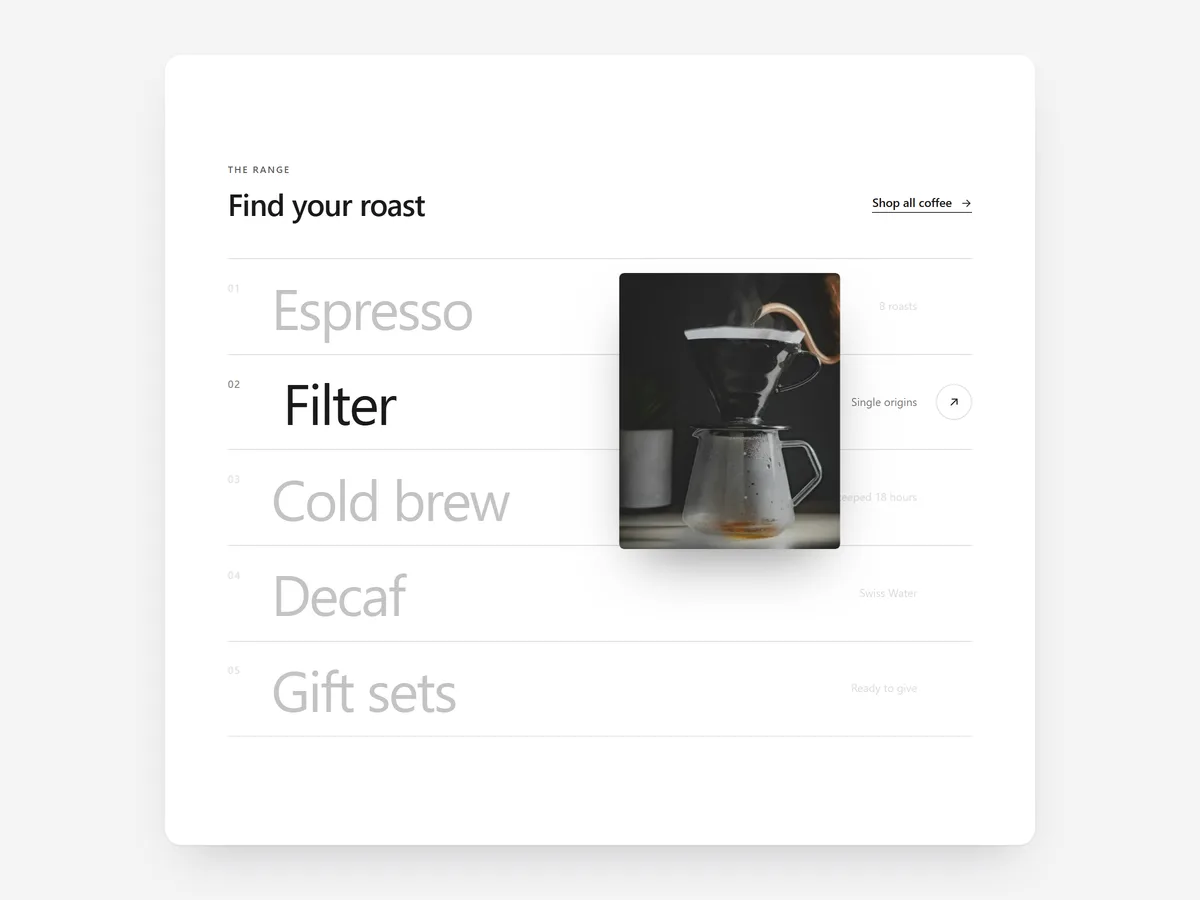
Image grids are everywhere, and after a few shops they all look alike. A list of large words that shows a picture only when the cursor touches a line feels closer to a magazine than a catalogue, and it makes shoppers move the mouse to explore.
Why it matters
Brands with a strong visual identity often struggle with standard collection grids: every tile competes, and the brand voice disappears. Shoppers see products, but not the mood that makes the brand worth paying for.
Hover Reveal Menu leads with words and lets images appear on demand. Choose it over Circle Menu when your audience browses on desktop and you want an editorial feel; choose Editorial Image & Text when images should be visible from the start.
What the section does
Hover Reveal Menu lists collections or stories in large type and reveals each line's image on hover. It fits the home page, a lookbook and content pages.
- 01The image can follow the cursor, appear in a fixed frame or run as a marquee, depending on the effect you want.
- 02On phones and tablets, where there is no hover, each line shows a thumbnail instead.
- 03The list is keyboard accessible and images are preloaded, so they appear without a delay.
- 04Numbering, dividers and type controls let you shape the list to your brand's typography.
Where to place it and what to write
On the home page, place it after the hero as the main way into collections. On a journal or lookbook page, use it to list stories.
- 01Use five to eight lines; the effect weakens when the list scrolls off the screen.
- 02Write short names, one to three words, so they can be set large.
- 03Choose images that look different from each other so each hover feels new.
- 04Use numbering for ordered content like chapters or drops.
Set it up in three steps
After saving, check the page on your phone, where thumbnails replace the hover. Type uses your theme's font by default unless you change it. Speed is unaffected, because the block renders plain HTML and CSS.
- 01Open Hover Reveal Menu in Section Store, add lines and images, choose the reveal style and check the live preview on desktop, tablet and mobile.
- 02Click Theme blocks, then Add to theme; the theme editor opens with the block already placed.
- 03Position it and save.
Conclusion
Hover Reveal Menu gives editorial brands a way into collections that reads like a magazine. The Hover Reveal Menu section is a one-time purchase of $12.99 in Section Store, or part of the Enterprise Plan.
Key takeaways
- 01Large type with images on hover sets a brand apart from standard grids.
- 02Phones and tablets get thumbnails, so the list works without hover.
- 03Short, clear names matter because the words carry the navigation.
Explore more