A product with five good features often ends up with five bullet points nobody reads. Shoppers understand a feature faster when they see it, and they take it in better one at a time. Tabs that pair each feature with its own image or clip do both.
Why it matters
Feature lists on product pages tend to be either a dense bullet list or a long run of image-and-text rows that pushes reviews and related products far down. Bullets lack proof, and long rows lose people before the end.
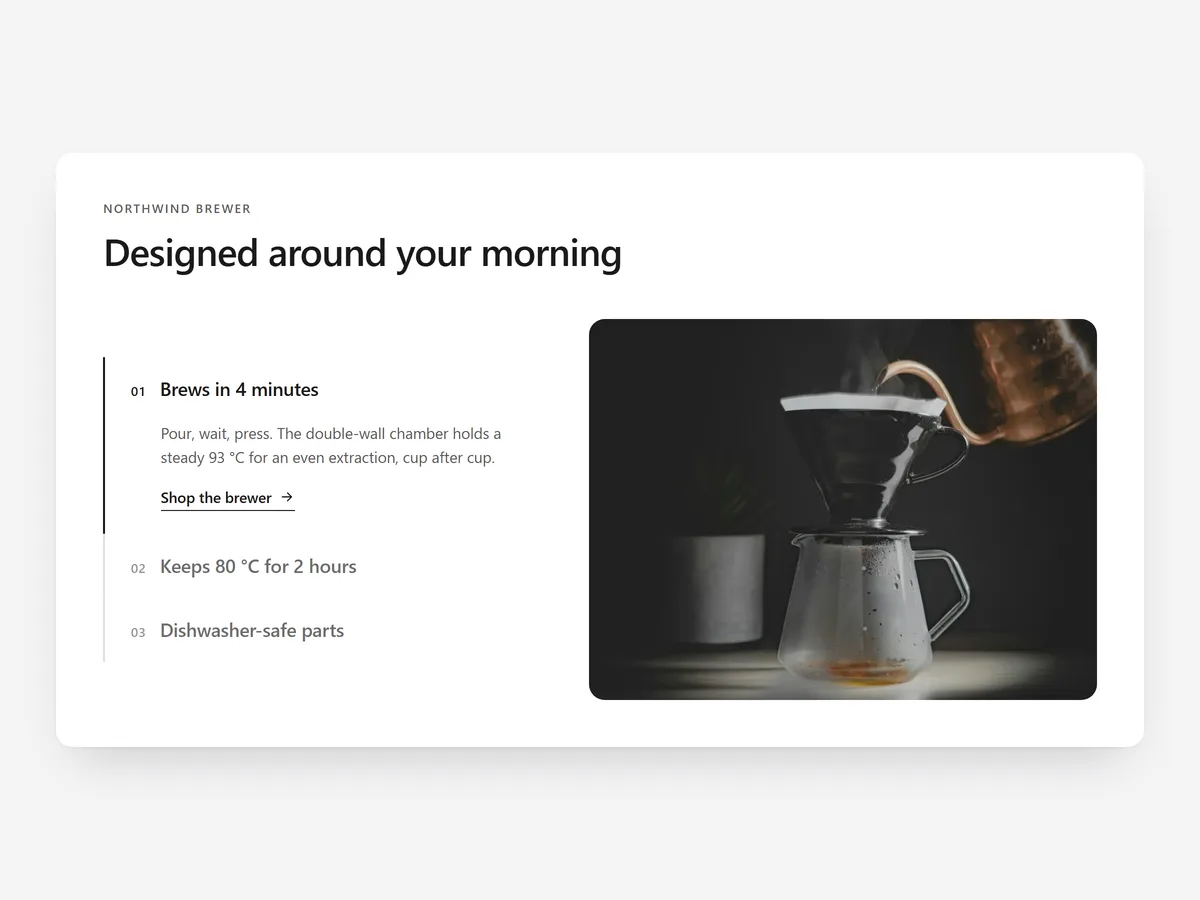
Feature Tabs compresses the same content into one block. A progress line moves through the features on its own, so even a passive visitor sees each one, while an interested shopper can click straight to the feature they care about.
What the section does
Feature Tabs fits product pages, the home page for a hero product and landing pages for software, devices or anything with distinct features.
- 01Choose a list next to media, tabs on top or cards, depending on how much text each feature needs.
- 02A progress line advances through the features automatically, and a pause button stops it.
- 03Each feature gets its own image or muted video, so every claim comes with something to look at.
- 04On phones it becomes an accordion with the media inline, which reads naturally on a small screen.
Where to place it and what to write
On a product page, place it below the buy box as the main feature explanation. On the home page, use it for your flagship product. For several types of content such as specs and shipping, Product Tabs is the right tool; Feature Tabs is for showing features.
- 01Use three to five features; more makes the cycle too long to follow.
- 02Name each tab after the benefit, such as "Stays cold for a day", not a part name.
- 03Keep each description to one or two sentences.
- 04Use a short clip for features that move, like a mechanism or a fold.
Set it up in three steps
After saving, open the mobile preview to check the accordion, and confirm the tab labels use your theme font. Speed is unaffected because the block renders plain HTML and CSS.
- 01Open Feature Tabs in Section Store, add your features with media and pick a layout in the visual builder.
- 02Click Theme blocks, then Add to theme, and the theme editor opens with the block already placed.
- 03Place it on the page and save.
Conclusion
Feature Tabs turns a feature list into something shoppers actually look at. The Feature Tabs section is a one-time purchase of $14.99 in Section Store, or part of the Enterprise Plan.
Key takeaways
- 01Pairing each feature with its own image or clip makes the claim easier to believe.
- 02An auto-advancing progress line shows every feature even to passive visitors.
- 03Three to five benefit-named tabs keep the section easy to follow.
Explore more