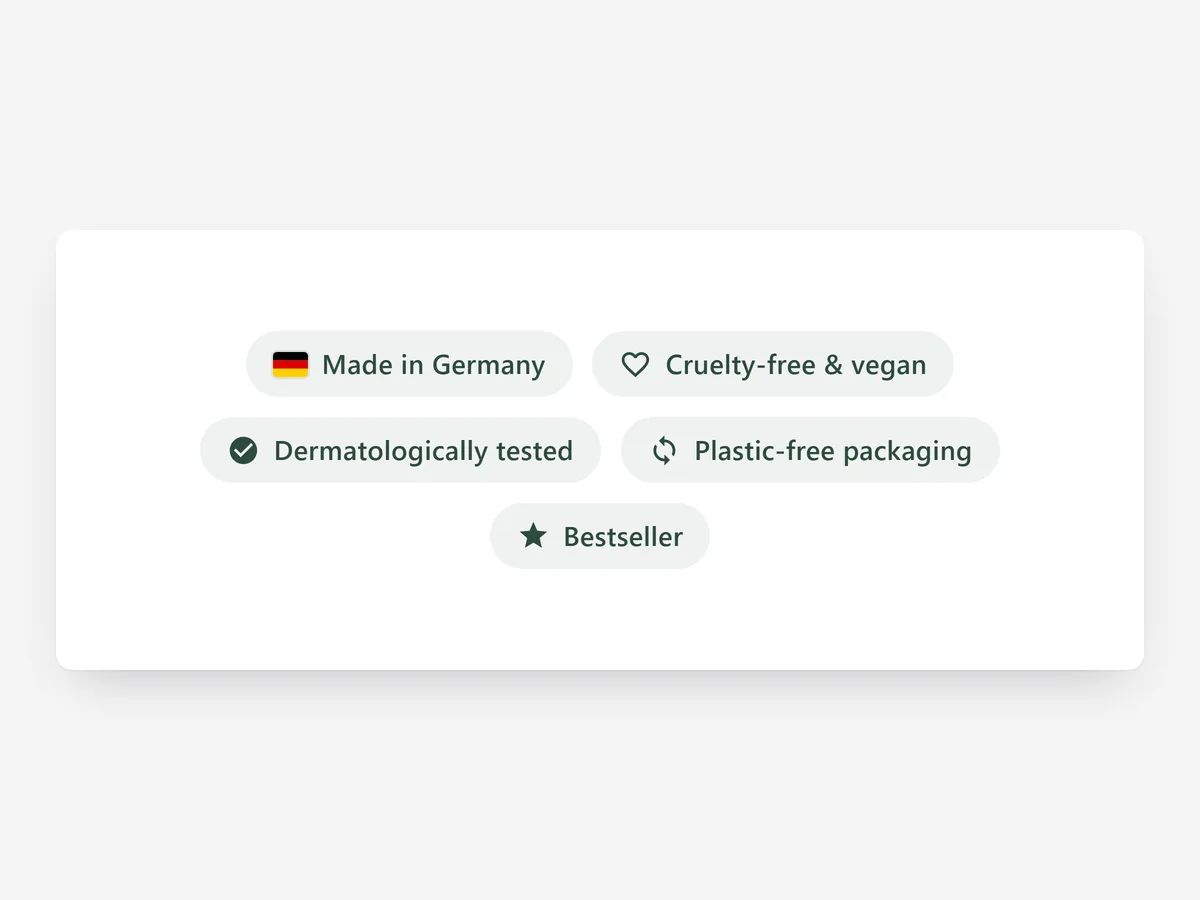
Shoppers scan a product page before they read it. Small badges like "Vegan", "Handmade" or a country flag deliver the facts that matter to them in a single glance.
Why it matters
Important facts, such as the material, origin or a certification, often sit in the third paragraph of the description. Shoppers who care about them skim past and assume the product does not qualify.
Themes that offer badges at all usually show the same loud "Sale" style for everything. Mixing a discount badge with a sustainability fact in the same red box cheapens both.
What the section does
Product Tags shows short facts as refined pills near the product title. It is made for product pages, where each product needs its own set of tags.
- 01Choose soft, outline or solid pill styles to match how prominent the badges should be.
- 02Add icons and country flags, so origin and attributes are recognisable without reading.
- 03Tags are set per product via a metafield, so every product shows only the facts that apply to it.
- 04A subtle staggered entrance brings the tags in one after another without distracting from the product.
Where to place it and what to write
Place the tags directly under the product title or just above the price. Keep them out of the description area, where they compete with text.
- 01Use three to five tags per product; more turns into noise.
- 02Keep each tag to one or two words: "Organic cotton", "Made in Italy".
- 03Use a flag only for real origin, and soft styles for facts rather than offers.
Set it up in three steps
Afterwards, open a few products in the mobile preview and check that tags wrap neatly under the title. Confirm they use your theme font. Speed is unaffected, because the block renders plain HTML and CSS.
- 01Open Product Tags in Section Store, pick a style and set up icons and flags in the visual builder.
- 02Click Theme blocks, then Add to theme; the theme editor opens the product template with the block placed.
- 03Fill the metafield for each product and save.
Conclusion
A few honest, well-styled badges let shoppers spot what matters to them before reading a word. The Product Tags section is a one-time purchase of $15 in Section Store, or part of the Enterprise Plan.
Key takeaways
- 01Show key facts as short badges near the title.
- 02Set tags per product through the metafield.
- 03Keep facts in calm styles and only tag what you can prove.
Explore more